

Shuffle
SOAR means Security, Orchestration, Automation, and Response. I am using Shuffle as my SOAR platform.
I’ll start by connecting Shuffle, then sending alert to TheHive, and then send email to SOC analyst. The objective here is to end up with a functional lab that integrates Wazuh, Shuffle, and TheHive.
Shuffle URL: https://shuffler.io/
Sample workflow
I have created an account with Shuffle. After logging in, I can go to Workflows.
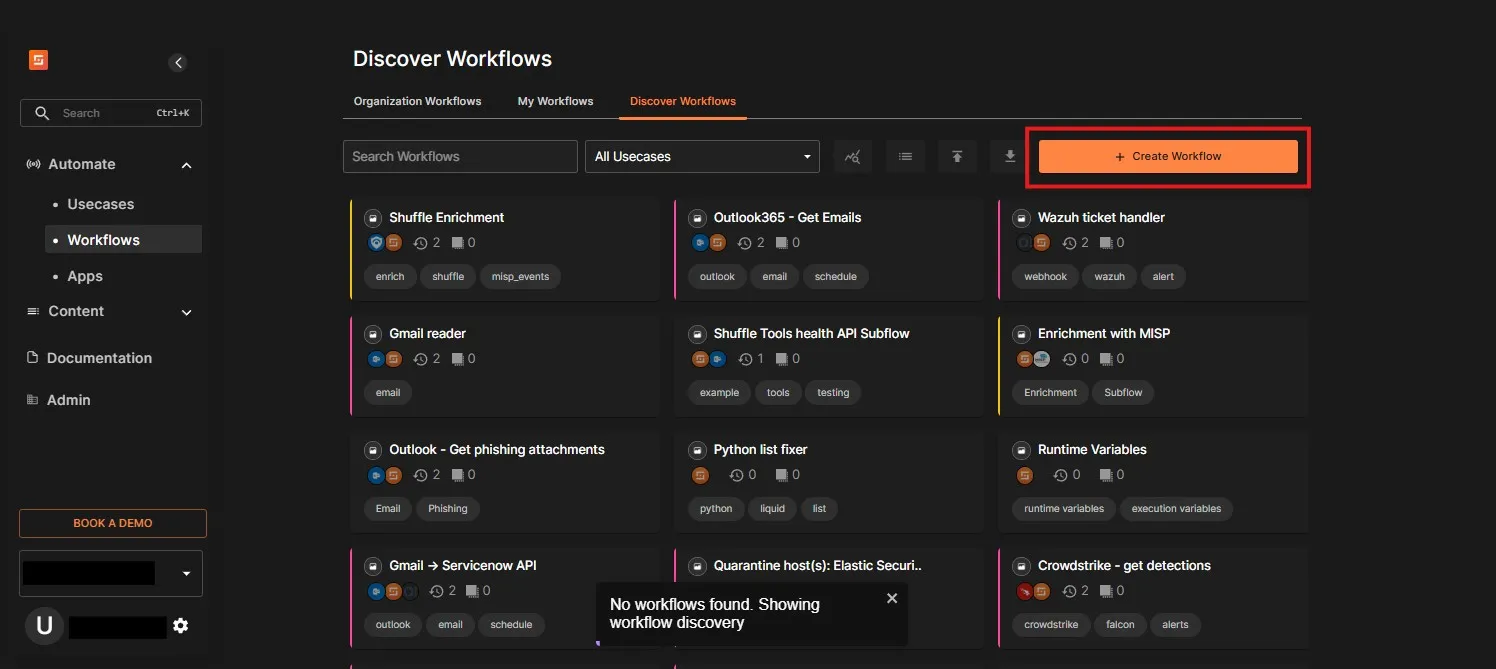
From here, let’s create a new workflow. I have named it SOC Automation and chosen relevant usecase SIEM to ticket.
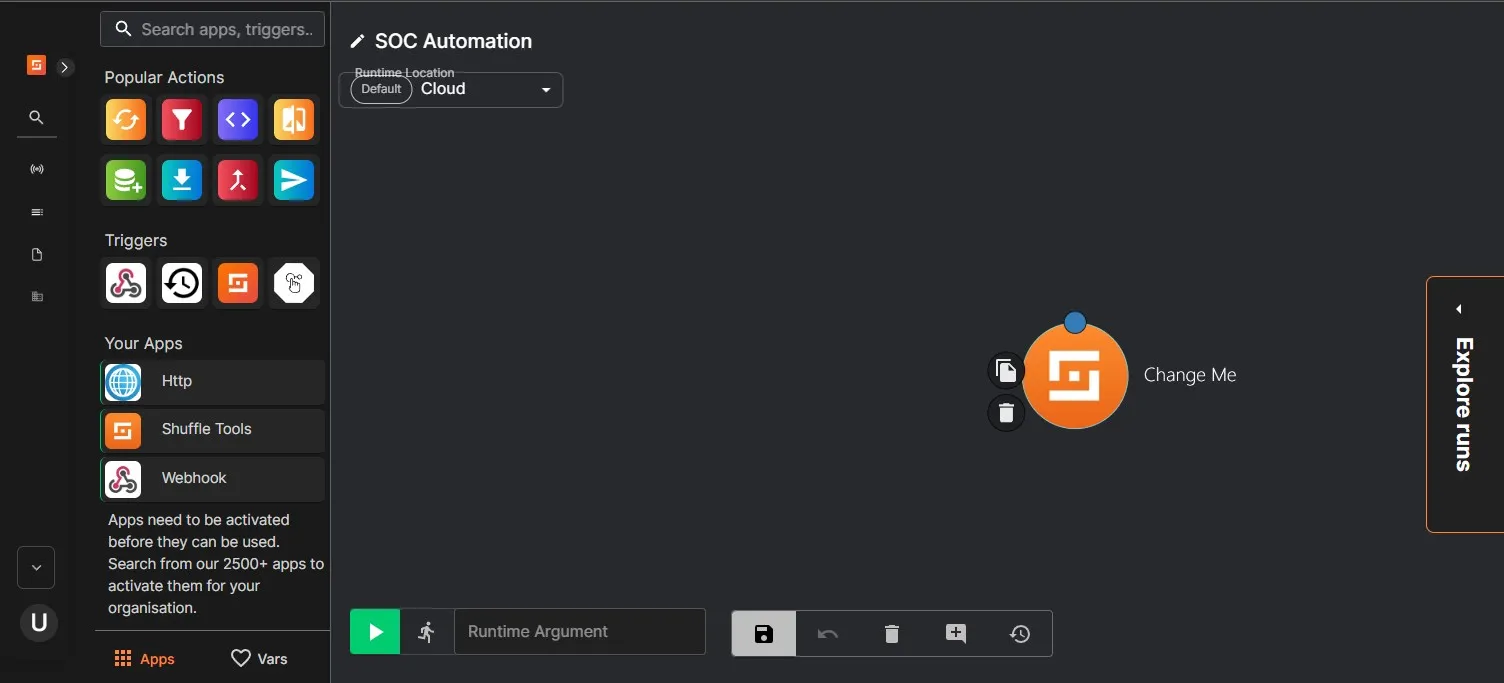
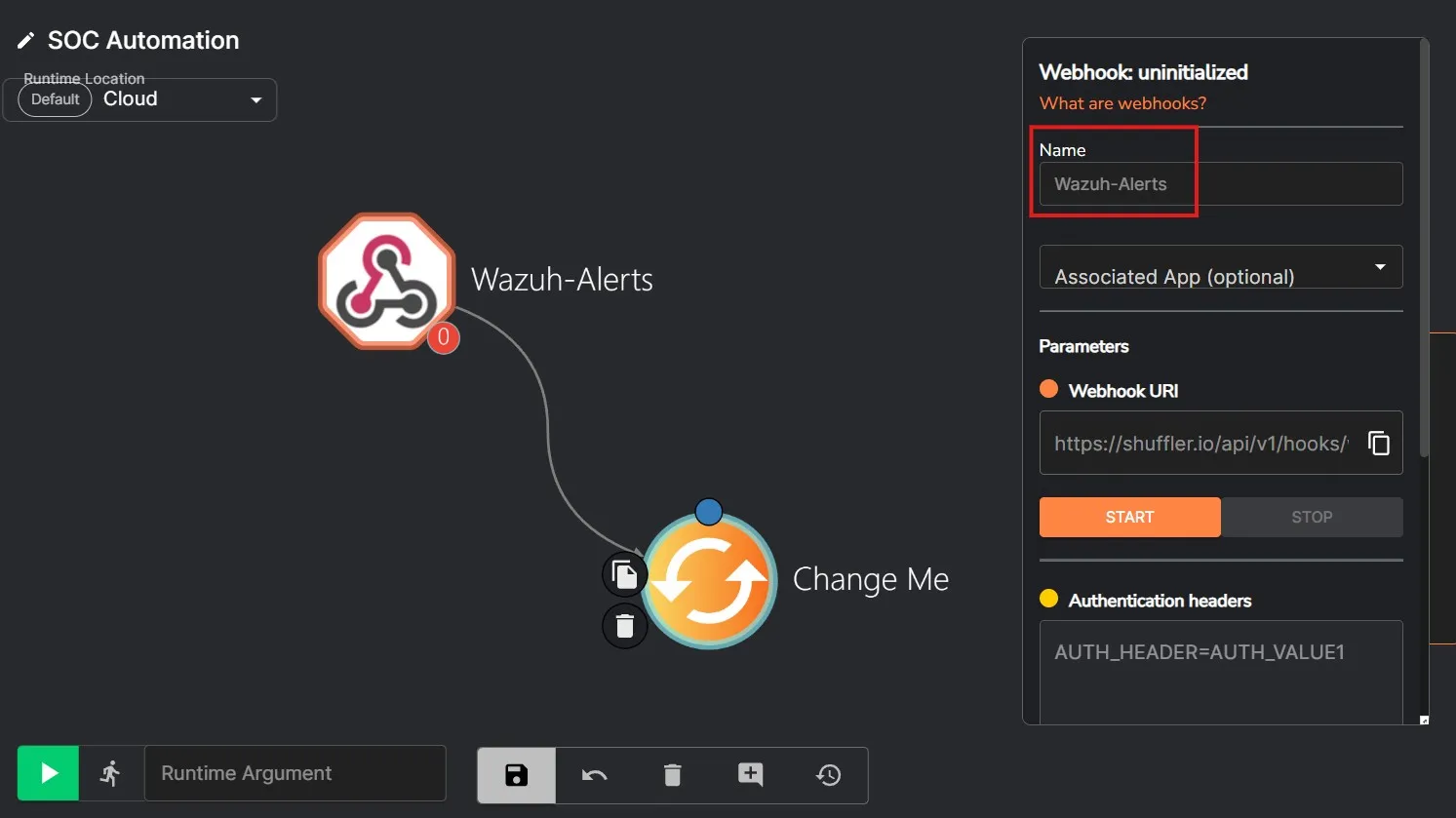
After that I am presented with the workplace where I can add apps and triggers. I am going to first drag and drop the Webhook trigger from the left. I am going to name this Webhook Wazuh-Alerts and copy the Webhook URI. I’ll be using this URI in the ossec configuration file.
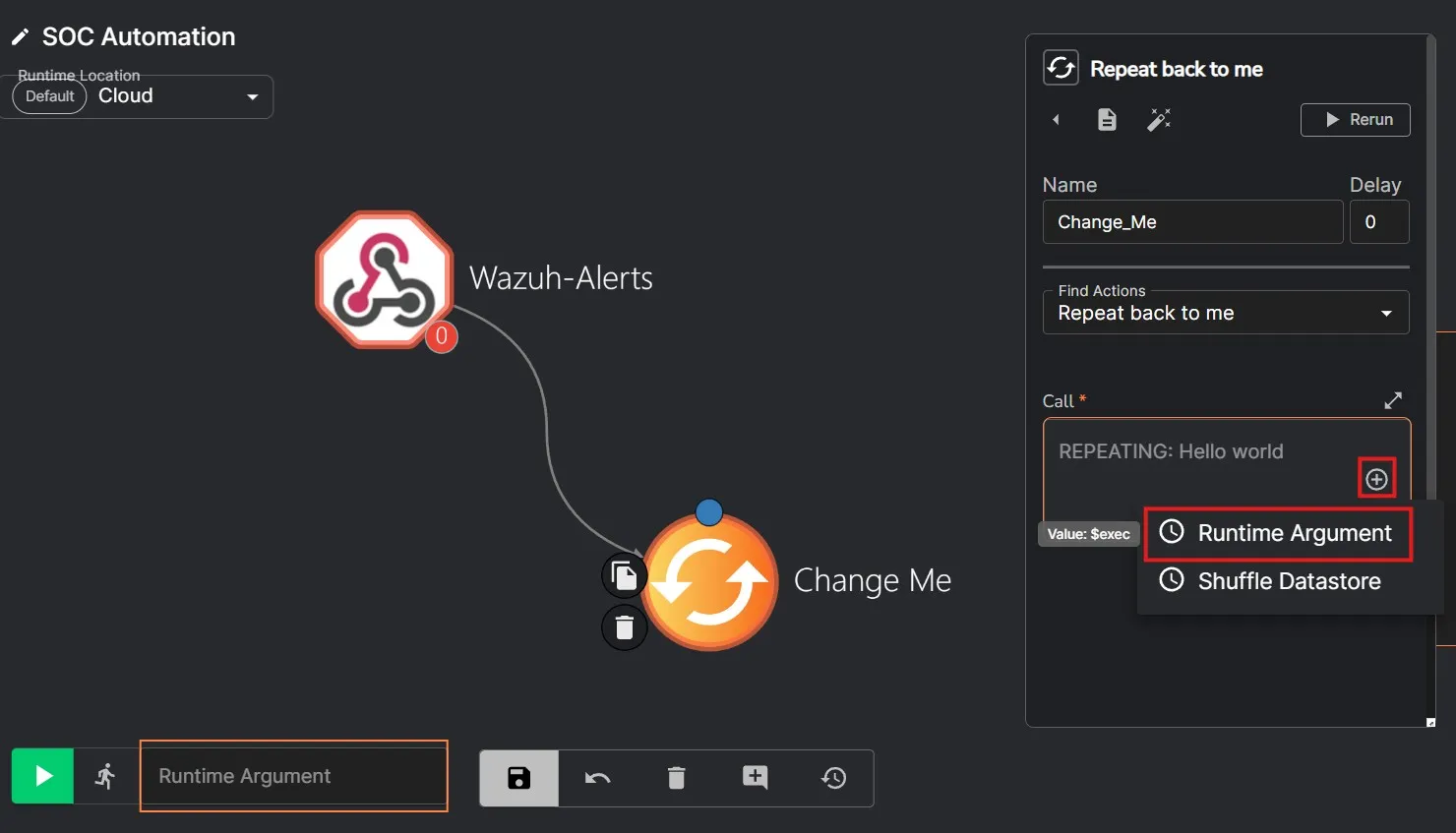
I am also going to make sure the Change Me action is set to Repeat back to me. I’ll change the Call as a Runtime Argument.
Finally, save the workflow.
Add Wazuh integration
I need to go to /var/ossec/etc/ossec.conf on Wazuh server. To add the Webhook as a Wazuh integration, I need to add the following to the configuration file.
<integration> <name>shuffle</name> <hook_url>https://shuffler.io/api/v1/hooks/webhook_4ebe78f5-02ef-4bd2-8a63-6641caa7c559 </hook_url> <rule_id>100002</rule_id> <alert_format>json</alert_format> </integration>Here, the hook_url is the Webhook URI I copied earlier. The rule_id value I’ve set to the Mimikatz rule ID, as I want that to be sent to shuffle. I can also use level and set the value to a level value 1 to 15, to make the integration send trigger the webhook whenever there is a rule triggered with of that particular level value.
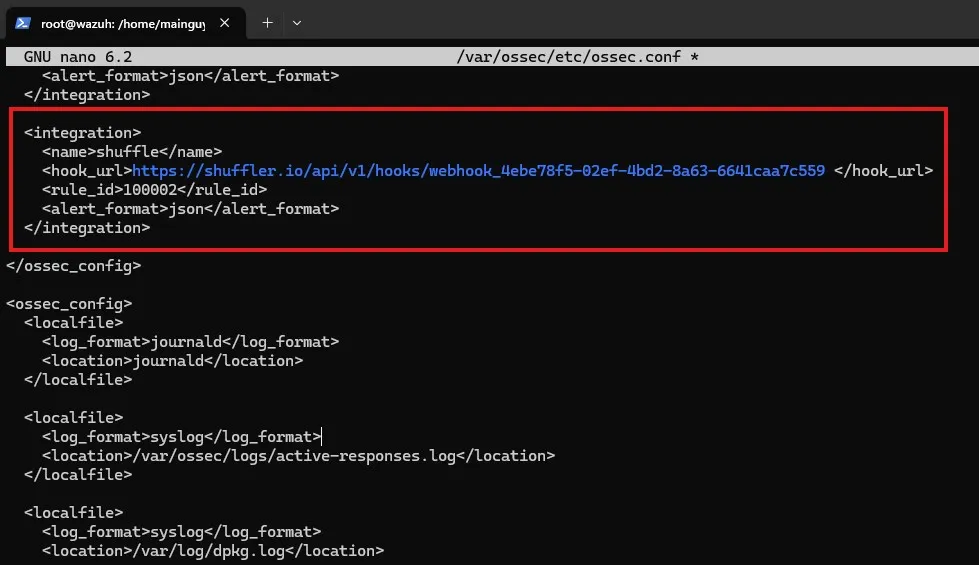
Let’s save the file and restart the Wazuh Manager.
systemctl restart wazuh-managerWorkflow
Steps
The workflow for the Mimikatz alert might look something like this:
- Mimikatz alert being sent to Shuffle
- Shuffle receives Mimikatz alert and extracts SHA256 filehash
- Check reputation score with VirusTotal
- Send details to TheHive to create an alert
- Send an email to SOC Analyst to let them begin further investigation
Send Wazuh alert to Shuffle
To begin with Step 1, I am going to test out the webhook and see if running Mimikatz sends the event to Shuffle.
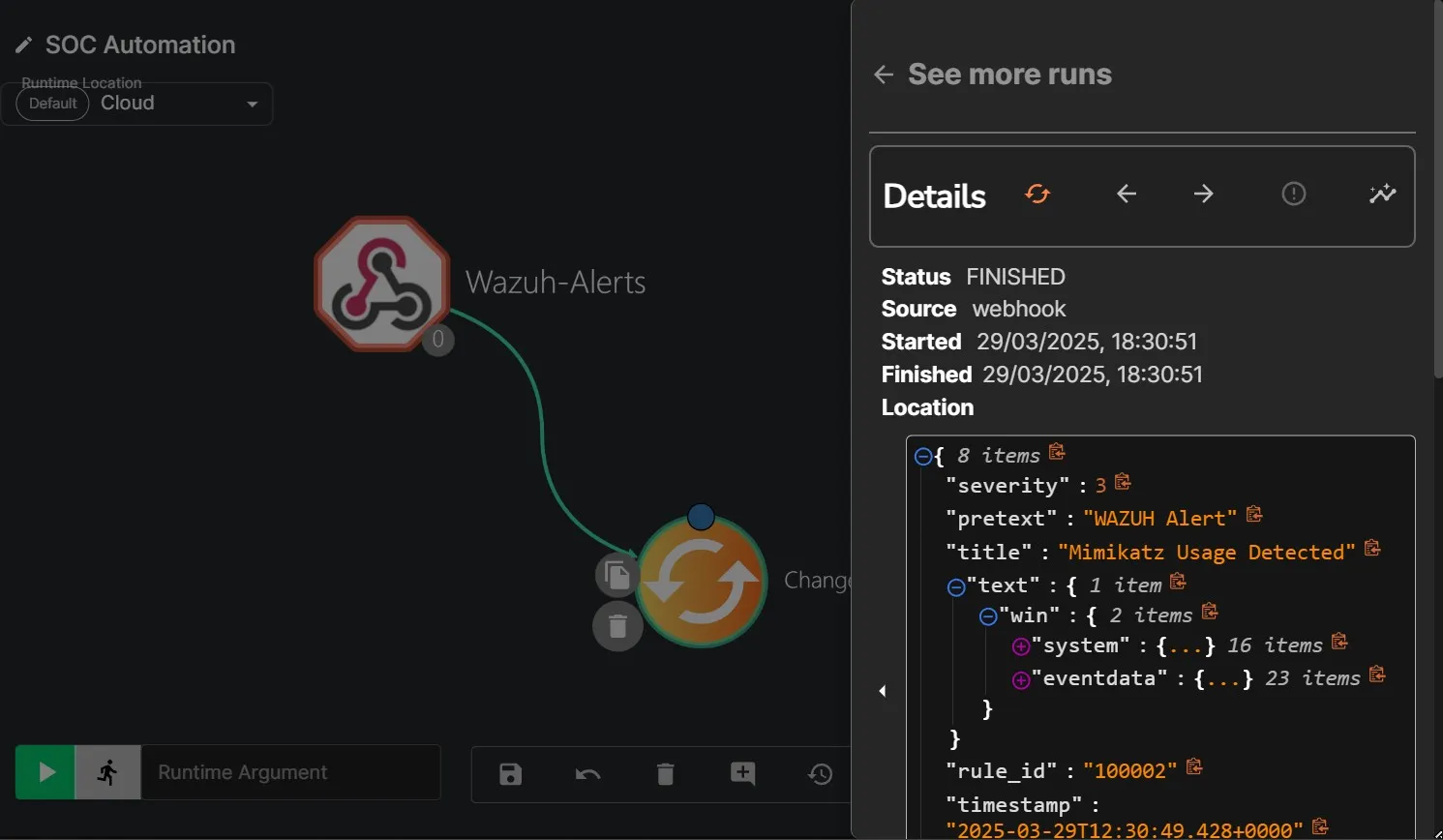
The Wazuh rule is now successfully triggering the Shuffle webhook. Since the Change Me action is set to repeat, it sends back the same JSON it receives. I am going to customize this workflow as needed.
Extract file hash
For step 2, I’ll need to set an action to extract the SHA256 hash from the JSON. The “hashes” value being received contains the hash type at the beginning (i.e. “SHA1=…”) which I do not want to send over to VirusTotal. To get around that I’ll be using a regex expression to extract out the SHA256 hash from the win.eventdata.hashes field value.
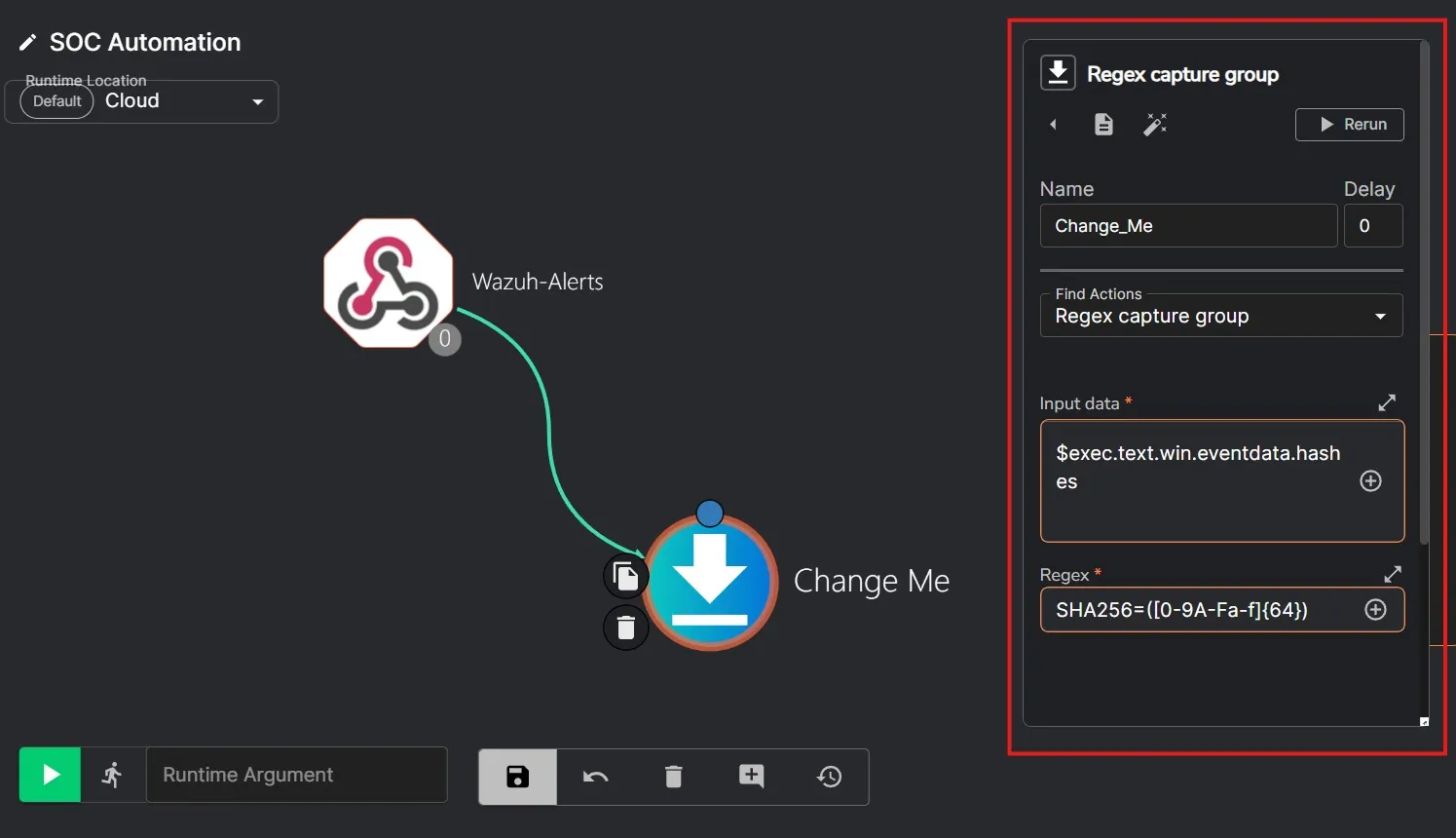
I have changed the action as well to Regex capture group, selected the Runtime Argument value (“hashes”), and set the regex expression as SHA256=([0-9A-Fa-f]{64}) to extract the SHA256 hash value.
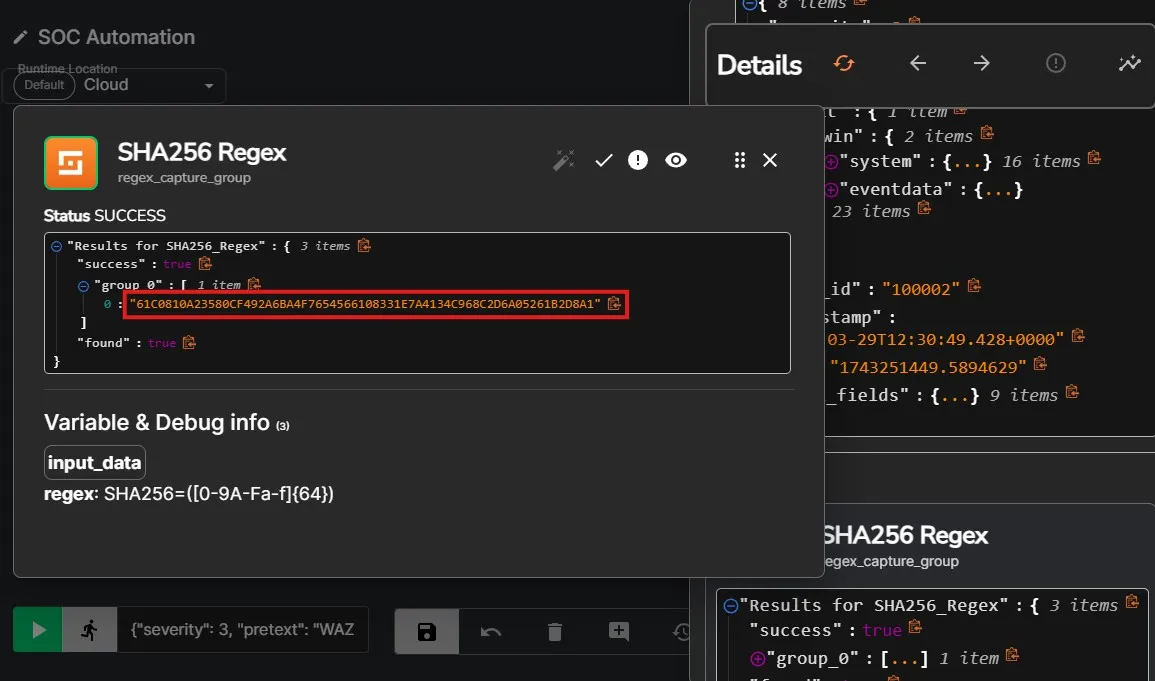
After a rerun of the previous execution workflow, now I can see that the action is now successfully parsing out the SHA256 hash from the JSON.
VirusTotal Integration
Next up, step 3 requires VirusTotal API integration. This way, I’ll be able to check the file hash with VirusTotal and get the result in return. Let’s search for VirusTotal in Shuffle, and drag-and-drop it onto the workspace. I am authenticating the with my own API key.
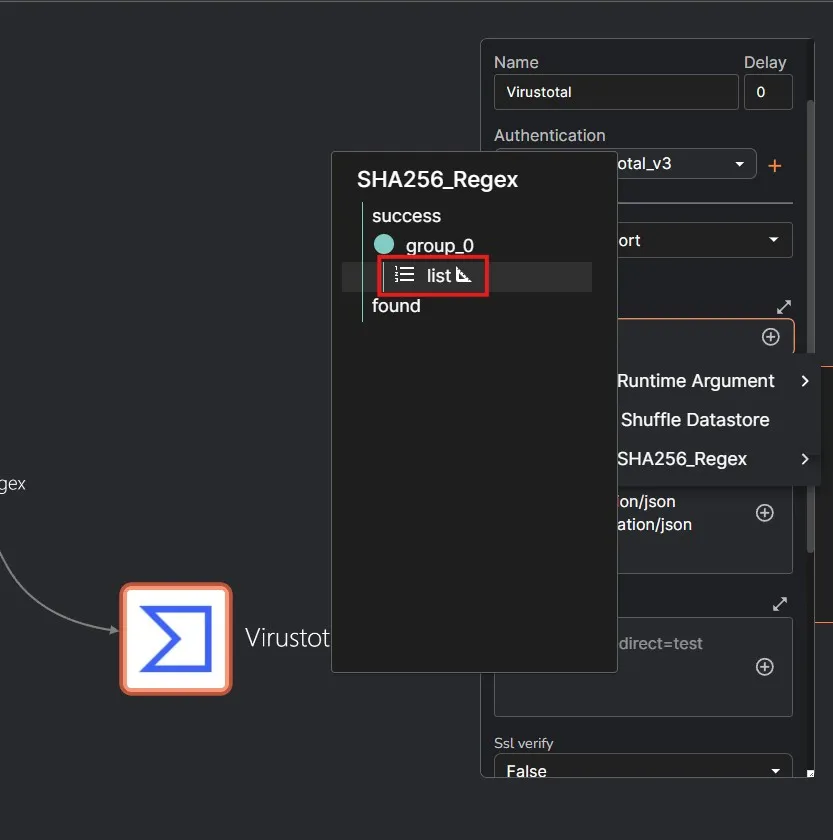
Let’s select Get a hash report action. For the Id value, I’m selecting the list under group_0. I am also adding a .# at the end as I only want the hash value to be included from the parsed result.
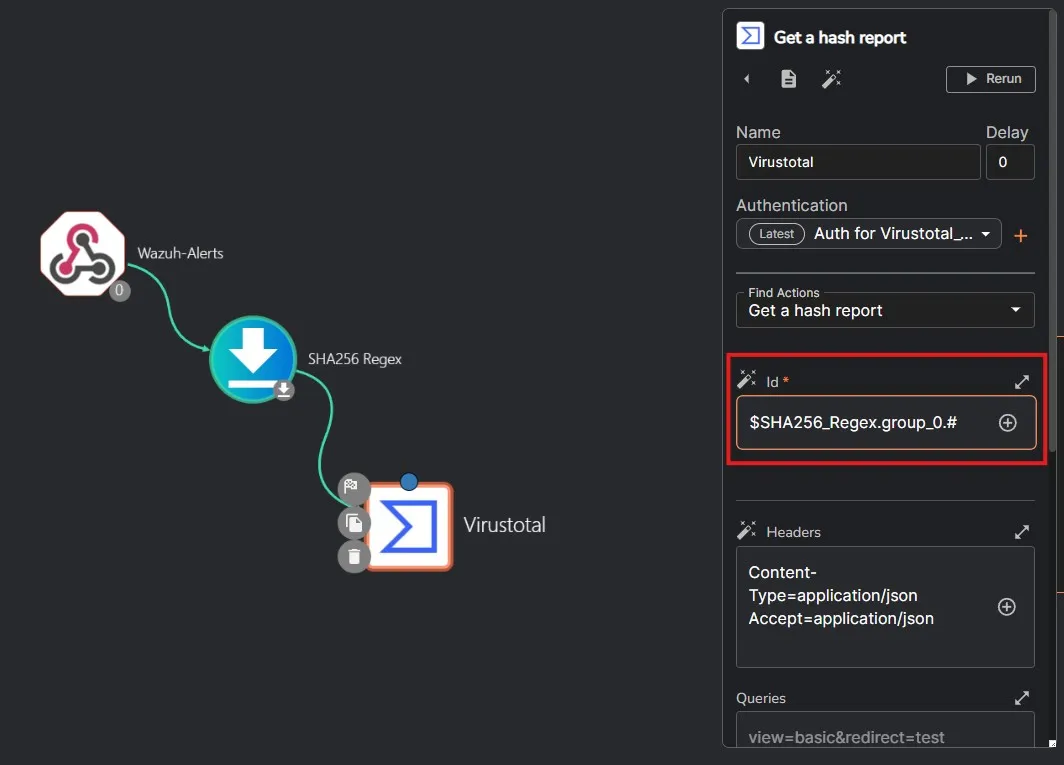
After saving the workflow, I am doing a rerun of the Mimikatz rule trigger.
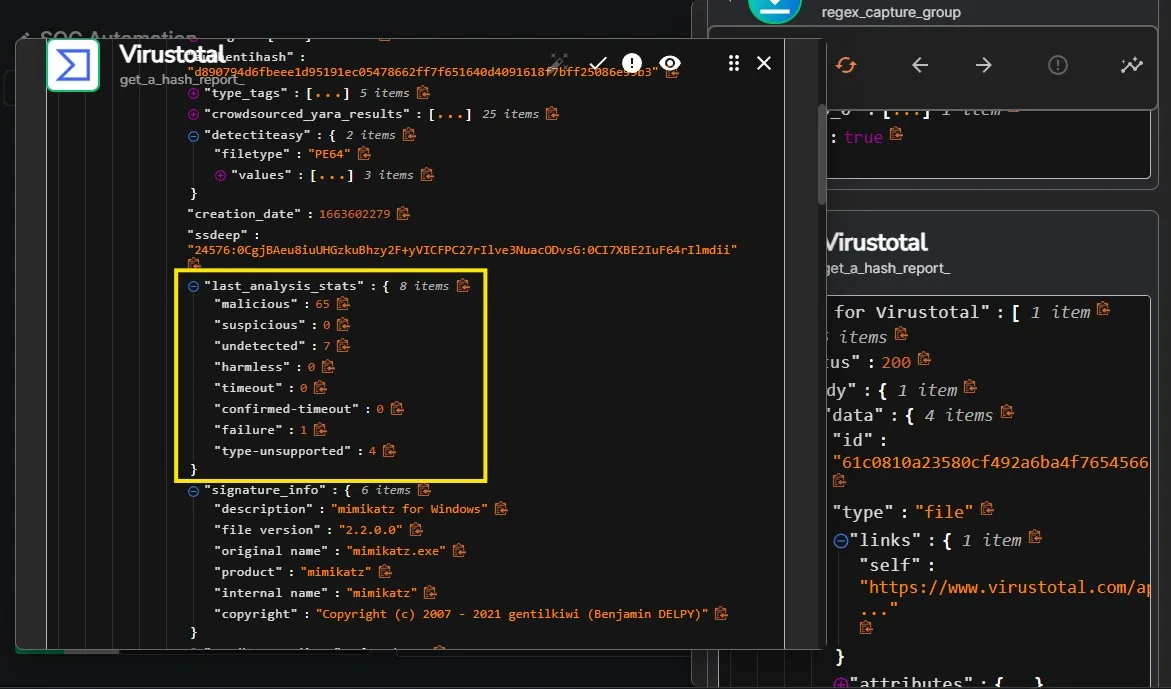
I am now getting a VirusTotal response. I can see under the last_analysis_stats that the file was flagged by 65 vendors as malicious. Hence, the VirusTotal integration is now working.
Wazuh also supports VirusTotal integration. But since my objective here is to achieve automation, I am utilizing Shuffle in this case.
So far the progress has been:
- SOAR receives Wazuh alert via the Webhook
- Perform Regex to parse out sha256 hash
- Use VirusTotal to check file reputation
Now, I need to send the details to TheHive, so that TheHive can create an alert for case management.
Send alert to TheHive
To begin with step 4, I’m first adding TheHive app in Shuffle. Then drag-and-drop to move it to my workspace.
Only one organization named admin is enabled on the TheHive at first. I’m going to add another organization named ucch45.
I’m also adding two users within the organization with following details:
| Details | User 1 | User 2 |
|---|---|---|
| Type | Normal | Service |
| Organization | ucch45 | ucch45 |
| Login | ucch45@test.com | shuffle@test.com |
| Name | ucch45 | SOAR |
| Profile | Analyst | Analyst |
In a real world environment, we would want to create a new set of permissions and tie that to the User 2 service account, keeping the Principle of Least Privilege in mind. Since, this is a temporary environment being built for learning purpose, I’m keeping it as the Analyst profile for now.
I am setting a new password for the ucch45 account. For the SOAR account, I am creating a new API key and saving it somewhere safe. I’ll be using this to authenticate with Shuffle.
Let’s log out of the admin user account, and log in using the new ucch45 account.
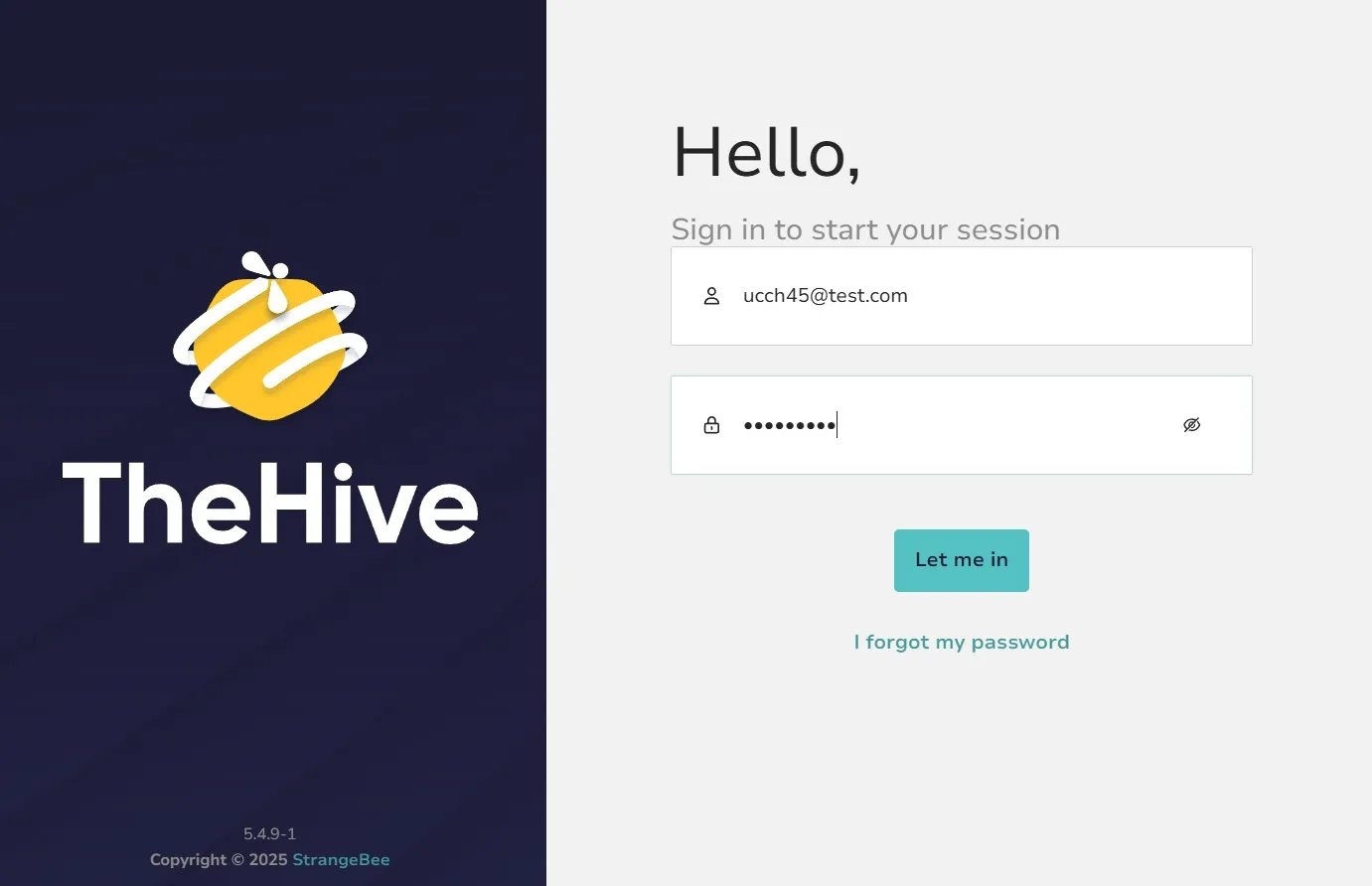
TheHive is now showing different options for this user account. I can see cases, alerts, and other options.
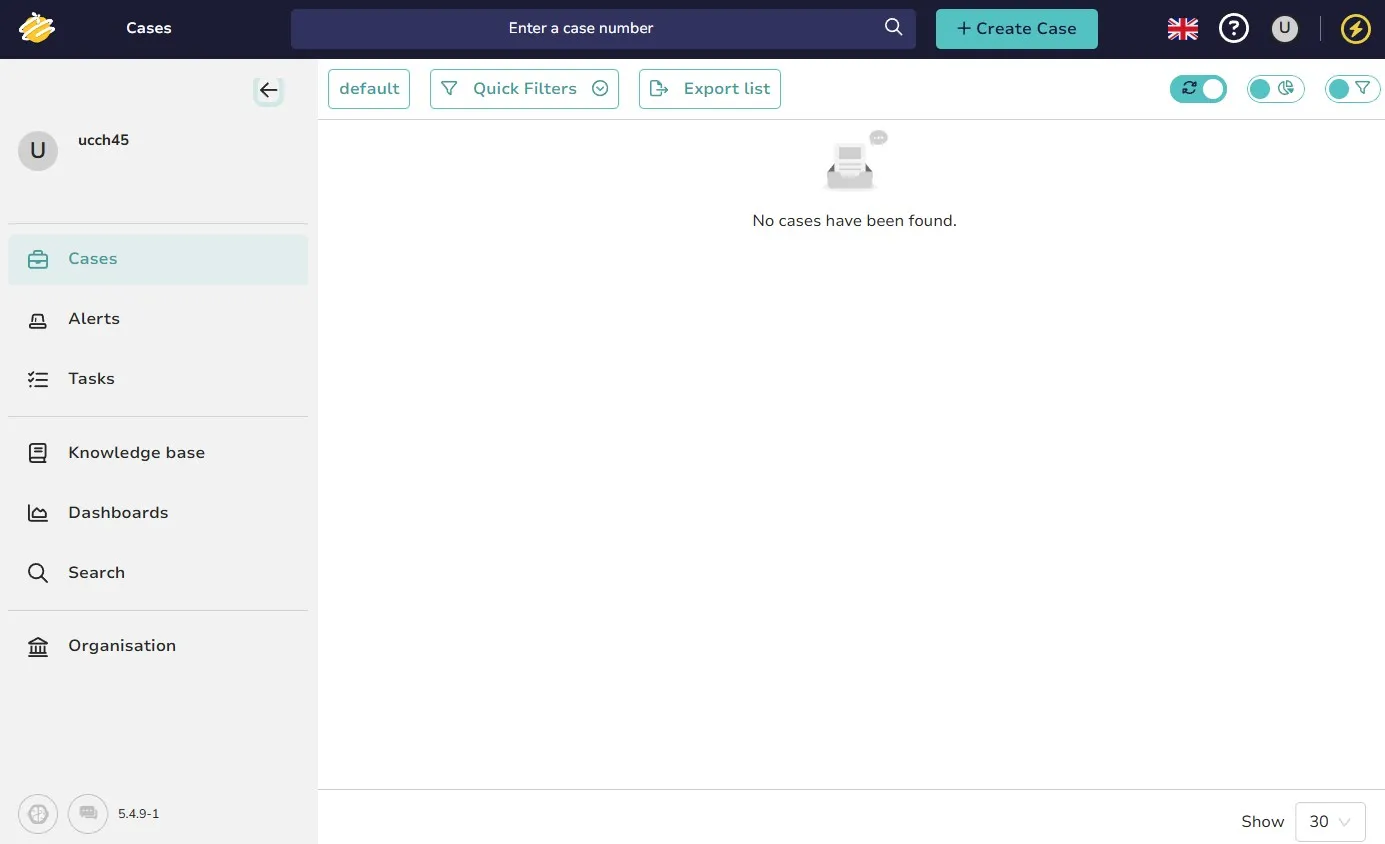
To work with this environment, I am now going back to Shuffle to configure this.
Since I am running TheHive on my LAN, but Shuffle on the cloud, I am using Cloudflare Tunnel tunneling service to establish an SSH connection to my localhost:9000. I’ll be using my configured domain address to let Shuffle connect with my TheHive server
I have put in the API key and the URL for validating with my TheHive instance.
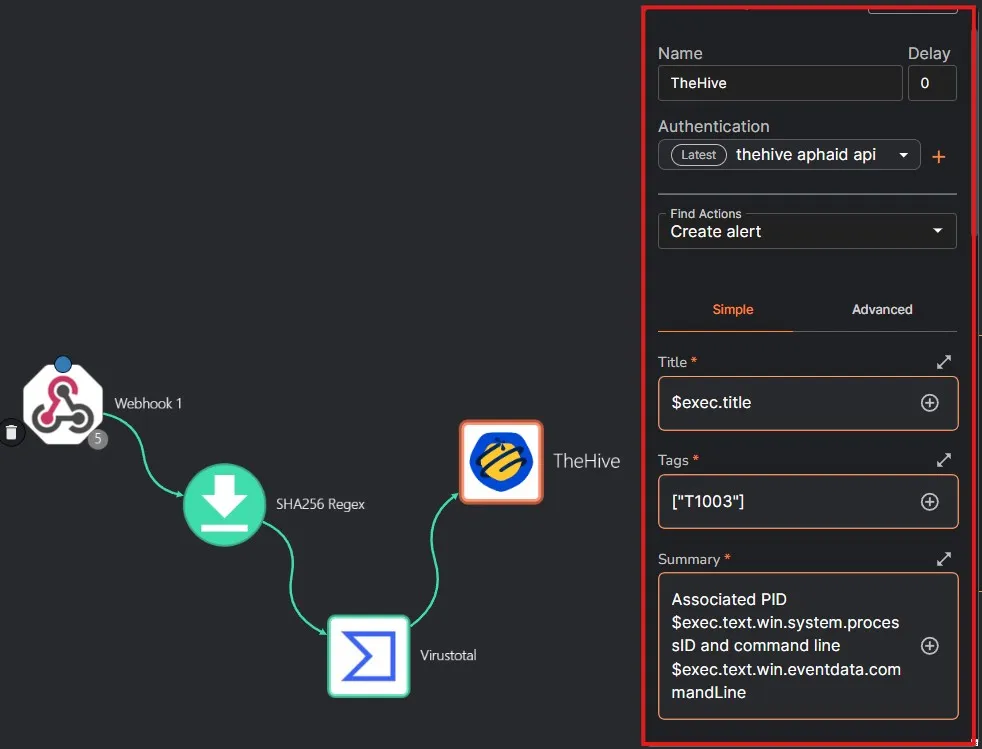
I am selecting Create alert action. Selecting a title, a suitable Summary, and the other fields as required.
PAP is the Permissible Actions Protocol which indicates the level of exposure of information. TLP is the Traffic light protocol AKA the confidentiality of information.
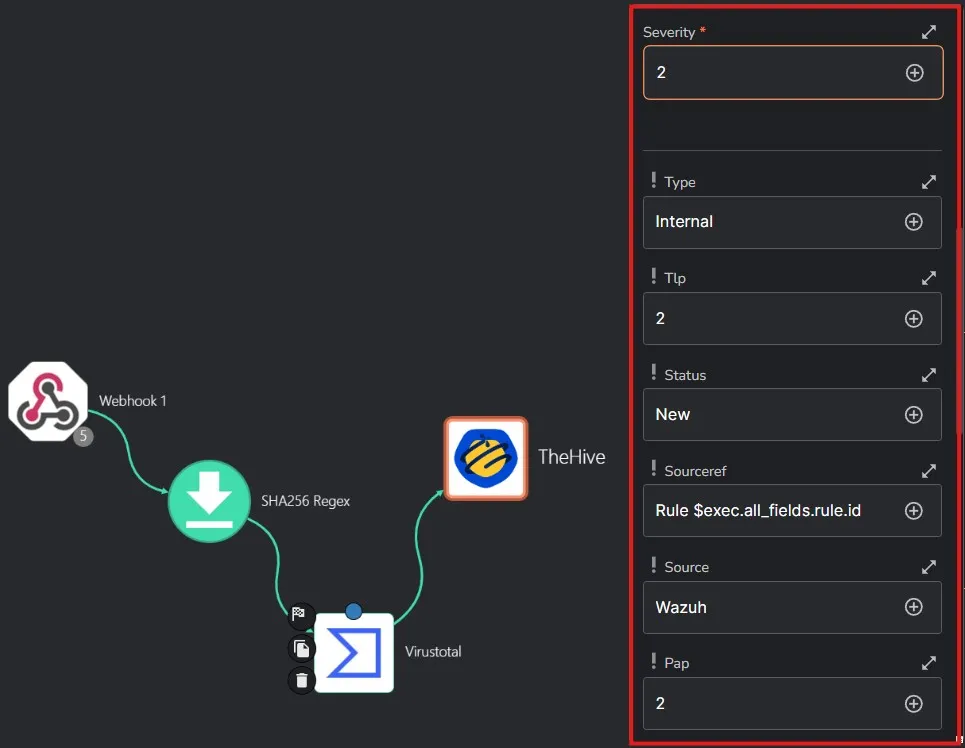
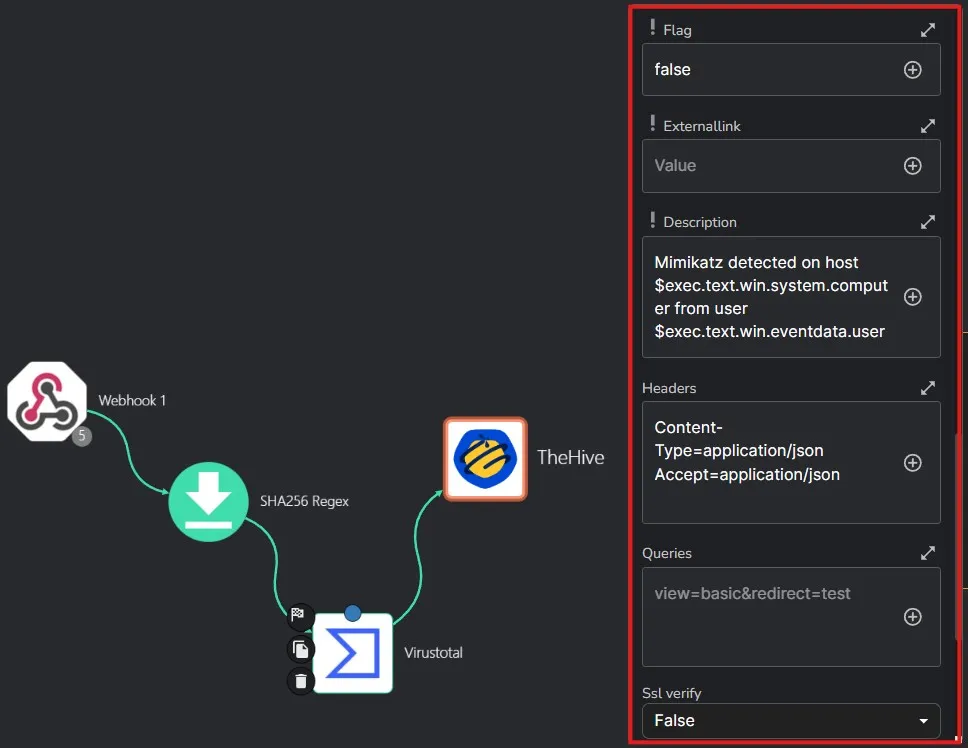
After saving the workflow, I am doing a rerun of the previous workflow run.
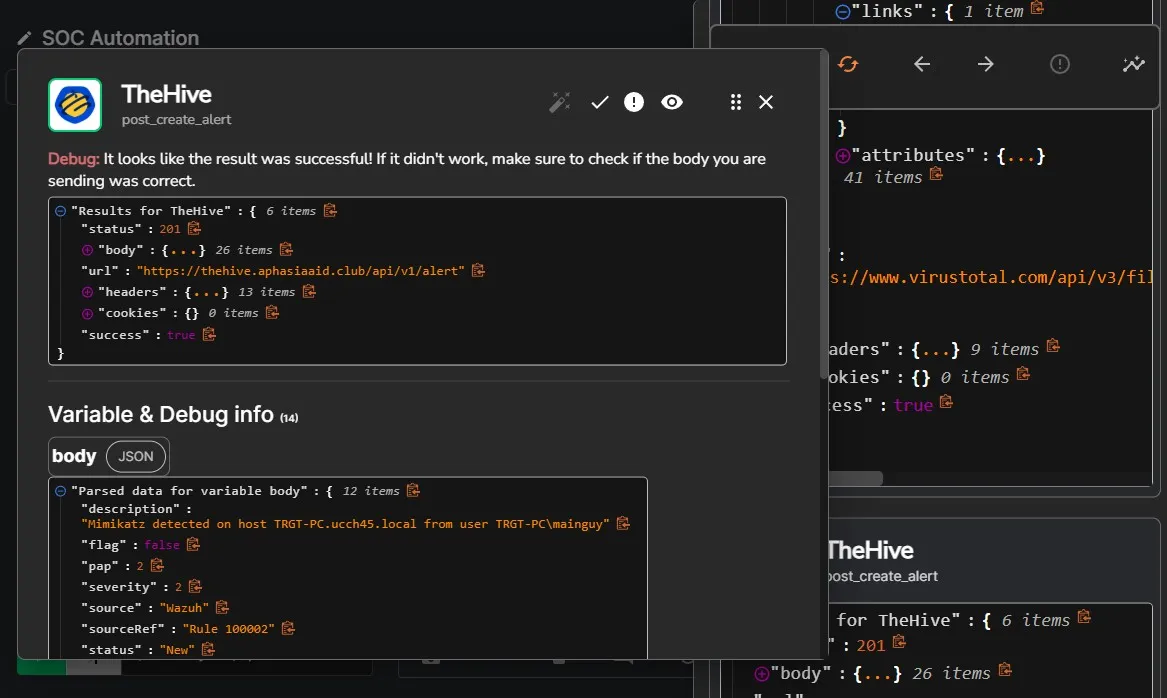
I can see from the details that TheHive alert creation is processed.
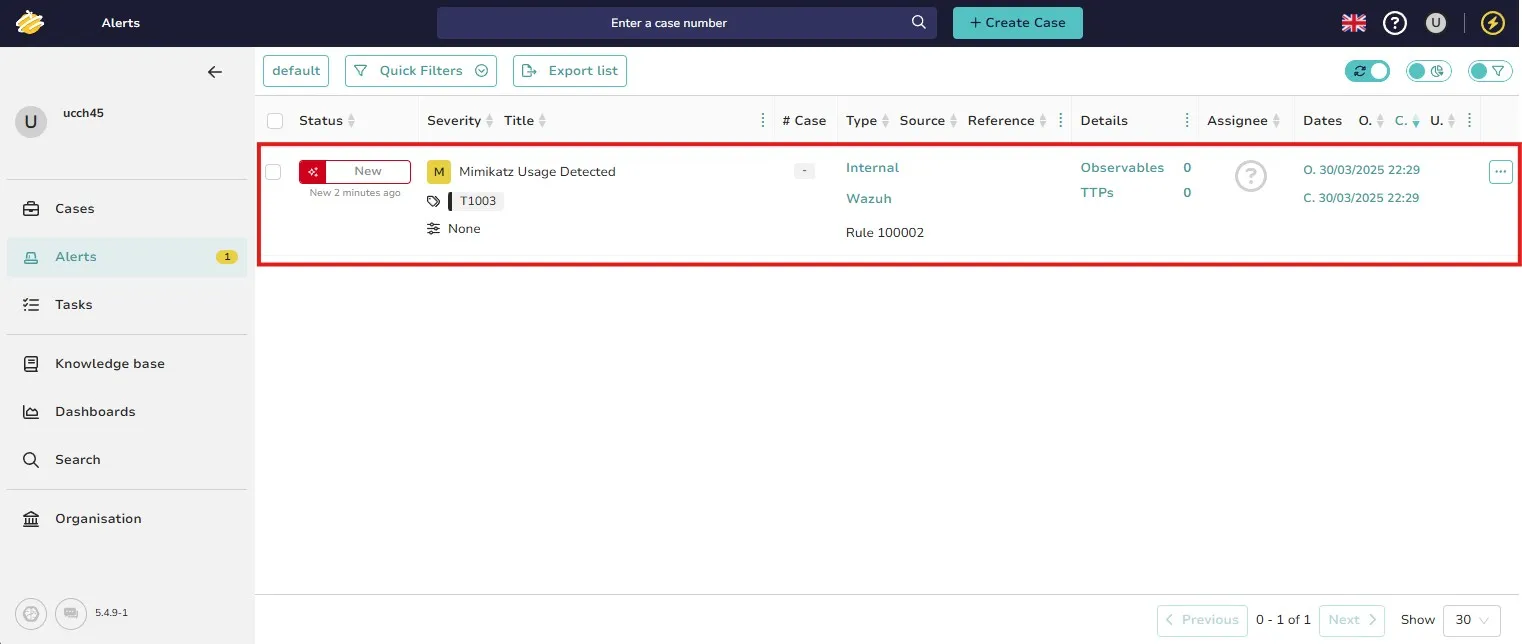
I can see an alert with “Mimikatz Usage Detected” as the title on TheHive portal.
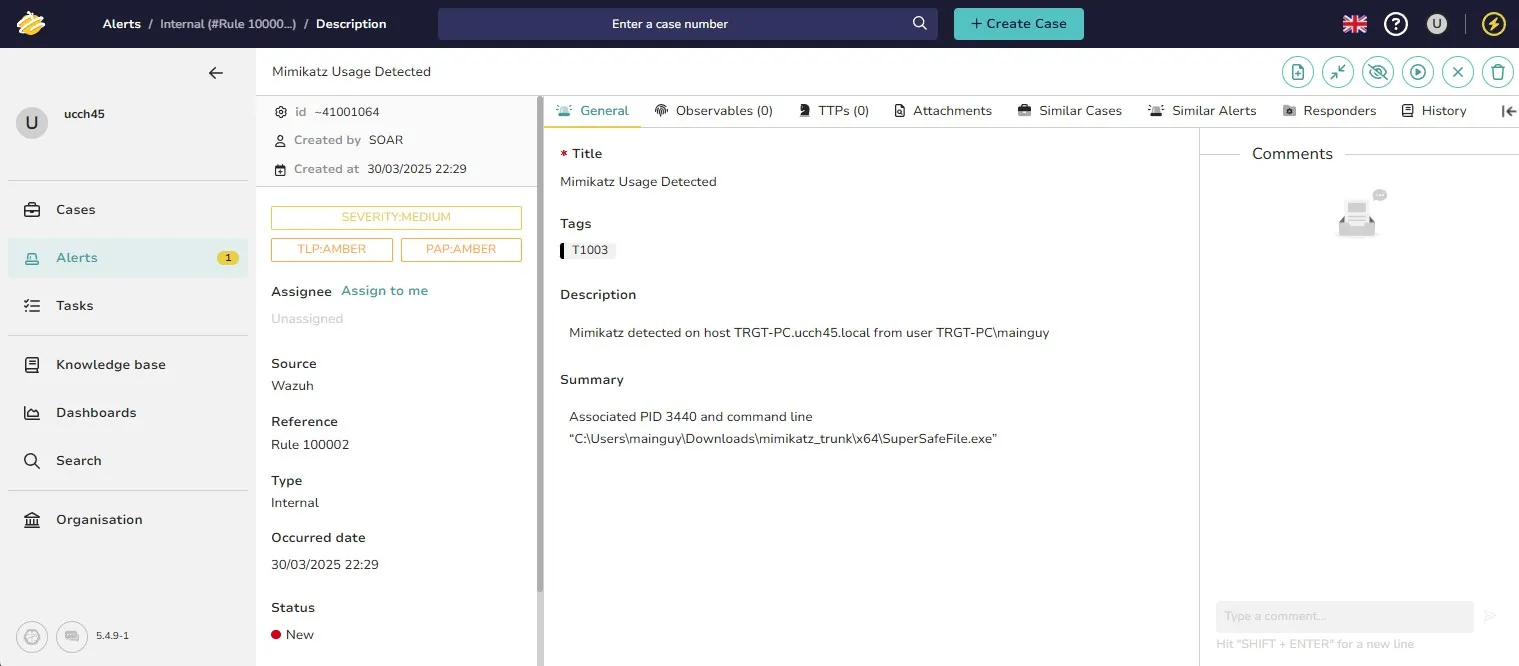
By going into that alert I can see alert details. The description and summary, if utilized properly, can be very powerful for analyzing incidents.
The next step is to send the SOC analyst an email containing the relevant information.
Send email
Step 5 is to send an email to the analyst informing them of the event. I am going to add the Email app in Shuffle in order to do that.
Let’s first connect VirusTotal to Email.
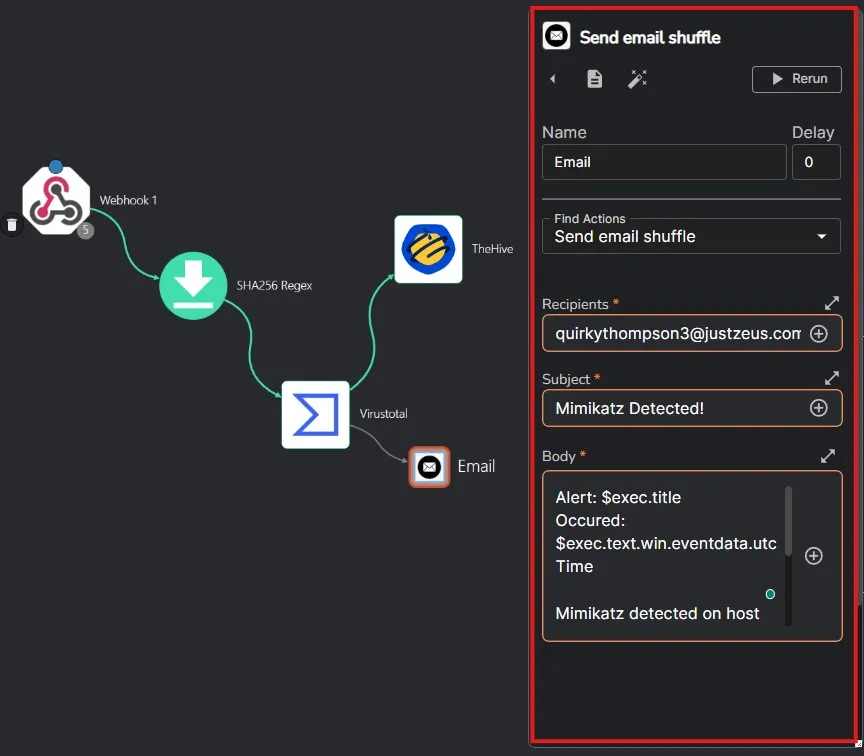
I have filled up the required fields as needed. I have also prepared the email body with relevant information. Let’s save the workflow and then run Mimikatz on my host machine again.
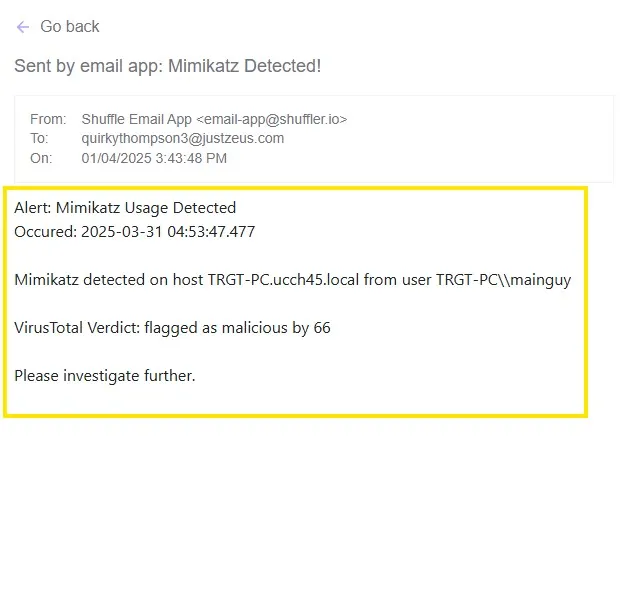
Within a few seconds of running Mimikatz on the Windows client, I got the email on my inbox. I am using shuffle’s email here to send the email. Actual use cases will require us to set up the SMTP email as per organization structure.
For custom rules and alerts as such, the case needs to be investigated further by the assigned analyst. For setting up responsive actions next, I’ll be using Wazuh’s active response feature on an exposed Ubuntu server(running on the cloud) to automate defending against real-world SSH brute force attacks.