

Detect Mimikatz
I want to generate telemetry and ingest that into Wazuh. I’ll need to configure Wazuh and send the generated telemetry containing Mimikatz while creating a custom Mimikatz alert.
Configure agent
The ossec.conf configuration file is located under C:\Program Files (x86)\ossec-agent\. I’ll make a copy of the file first to make sure that I’m saving the default config in case something unintentional happens. Let’s run Notepad as administrator and open the file.
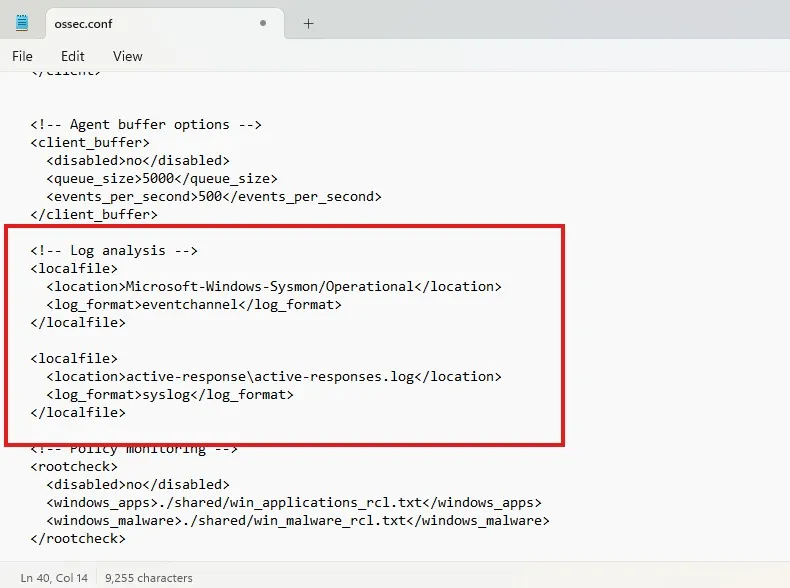
I have modified the configuration as above, by removing the Application, Security and System event forwarders, and including the Sysmon channel, since I want the Sysmon logs to be forwarded. After saving the configuration, let’s restart the Wazuh service.
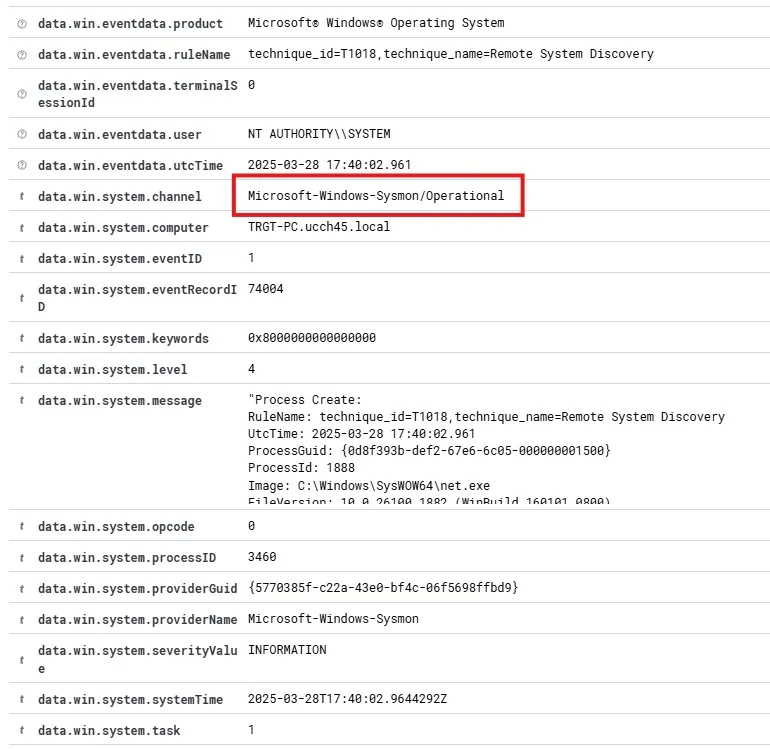
I can see logs on my Wazuh coming in from channel Microsoft-Windows-Sysmon/Operational now. This indicates that the Sysmon logs are being forwarded successfully.
Configure Wazuh
By default, Wazuh manager does not show all logs and only the logs that trigger a rule will show up. I want to be able to see all logs within Wazuh regardless of whether it triggers a rule or not.
To do that, I’ll start by configuring ossec.conf on the Wazuh server to log everything. The configuration file is located at var/ossec/etc/ossec.conf. Let’s first make a backup of the file so that I can reset to the default config if I were to accidentally overwrite something.
cp /var/ossec/etc/ossec.conf ./ossec-backup.confnano /var/ossec/etc/ossec.conf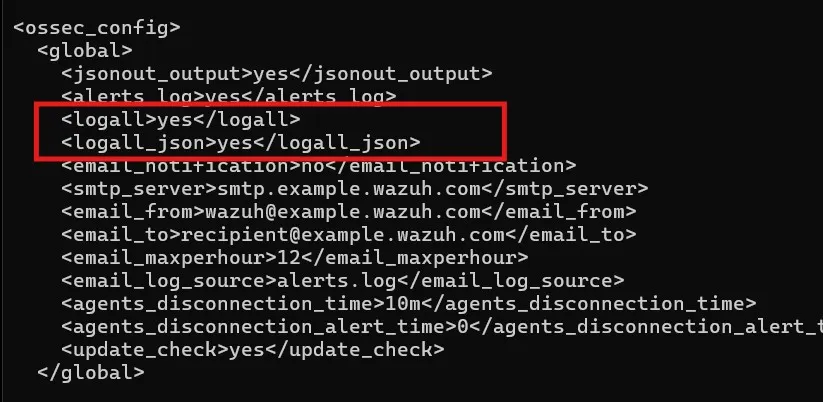
Setting the logall and logall_json to yes. After saving the file, let’s restart the Wazuh Manager.
systemctl restart wazuh-managerThis will make Wazuh save all the logs and put them in the /var/ossec/logs/archives/ directory. To make Wazuh start ingesting these logs, I’ll need to change filebeat configuration.
nano /etc/filebeat/filebeat.yml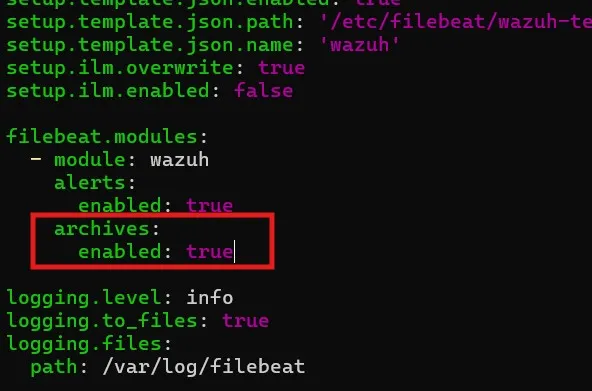
Let’s enable the archive module on the configuration file and restart the filebeat service.
nano /etc/filebeat/filebeat.ymlsystemctl restart filebeatAt this point, I need to create an index in Wazuh for me to see the archive logs. This will let me see all the logs regardless of whether Wazuh triggered an alert or not.
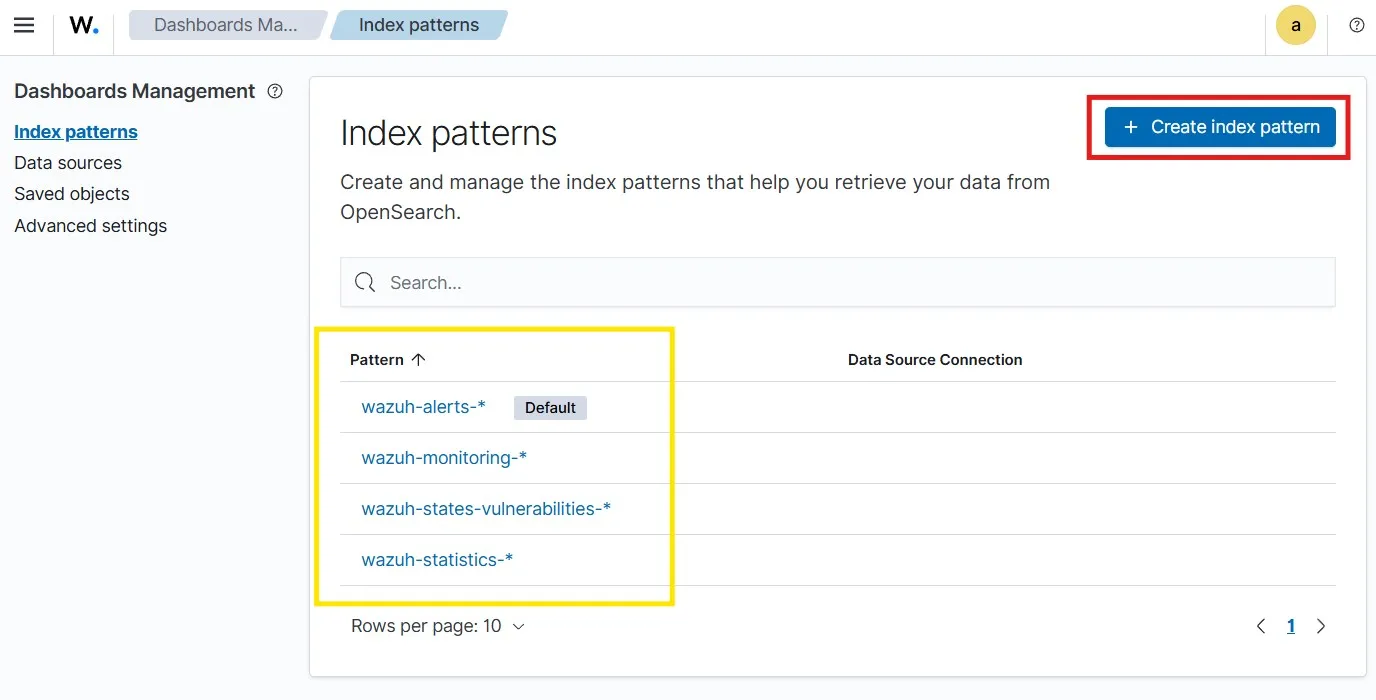
To create an index, let’s head over to
Dashboards Manager > Index patterns
Here, I can see 4 index patterns listed. I’ll be create another index pattern of wazuh-archives-*.
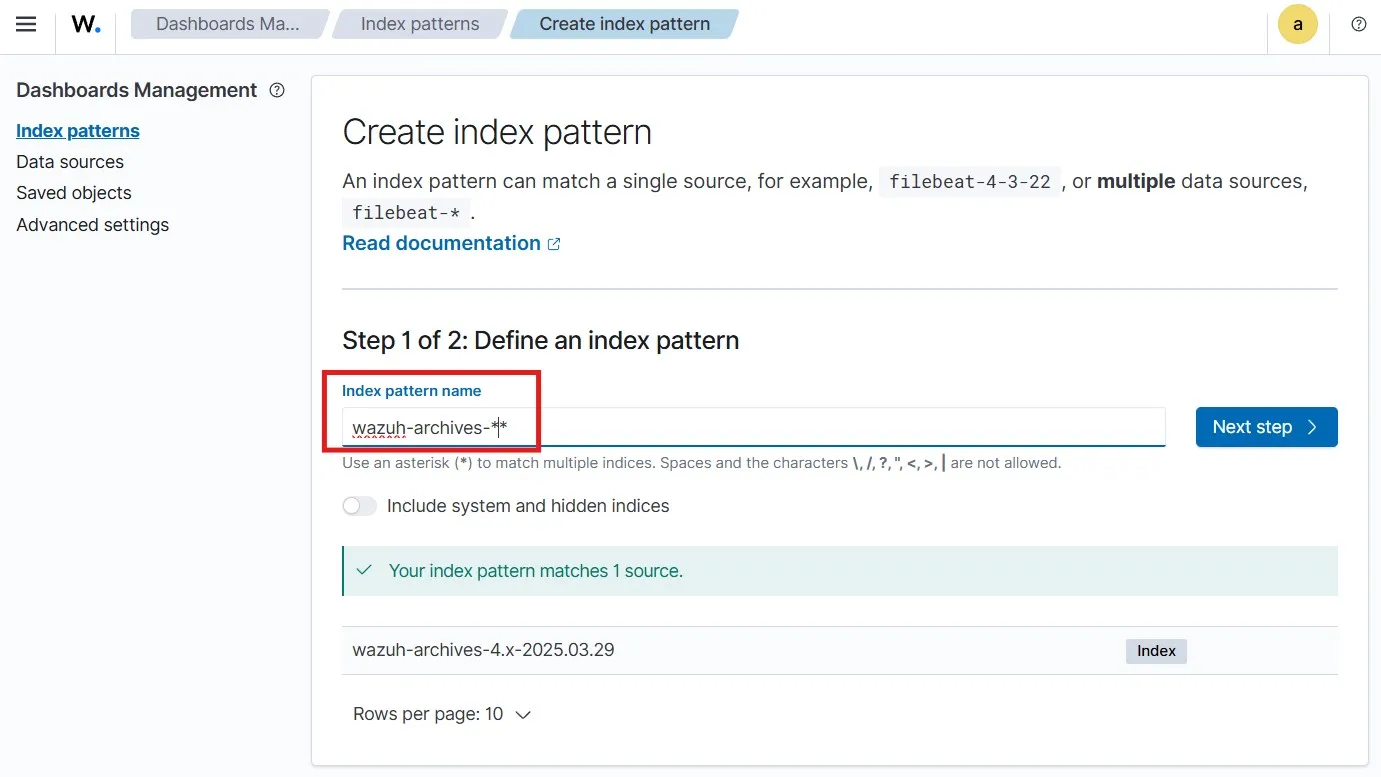
I have selected the timestamp as the Time field and then created the index pattern.
Run Mimikatz
Mimikatz is used by attackers to extract credentials. Mimikatz will be detected and blocked by Windows defender. That’s why, before moving forward with Mimikatz, I’ll be excluding the Downloads folder from the Virus & threat protection.
I’m also turning off malicious download protection from my browser settings since the browser might also block the file from downloading.
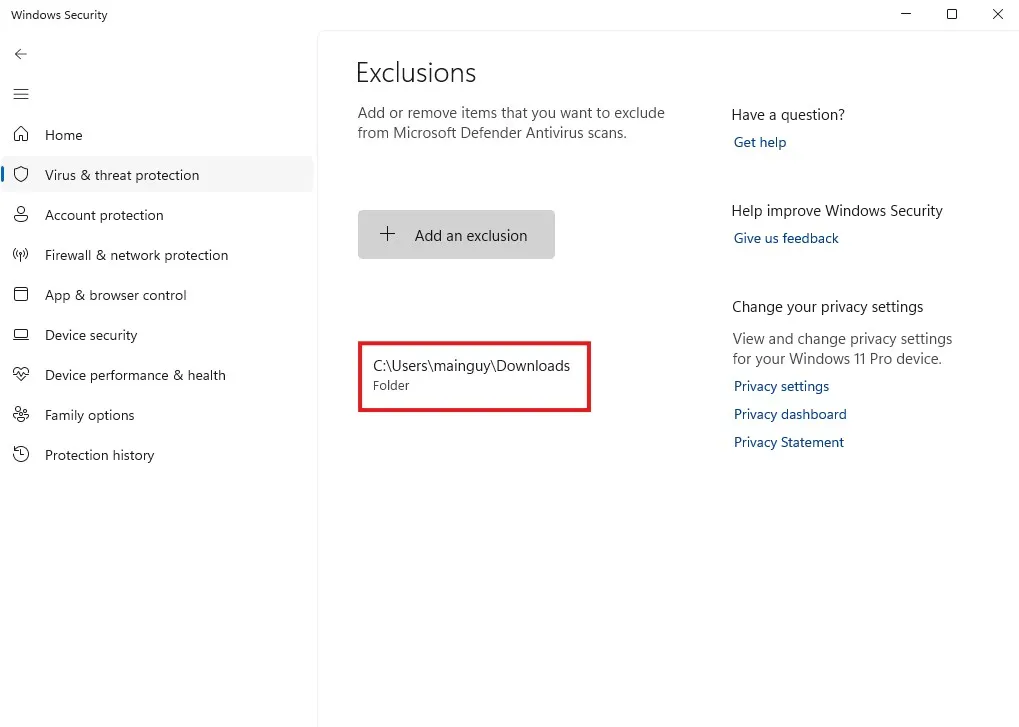
I’ve downloaded Mimikatz zip file from their github releases. Let’s extract the zip file.
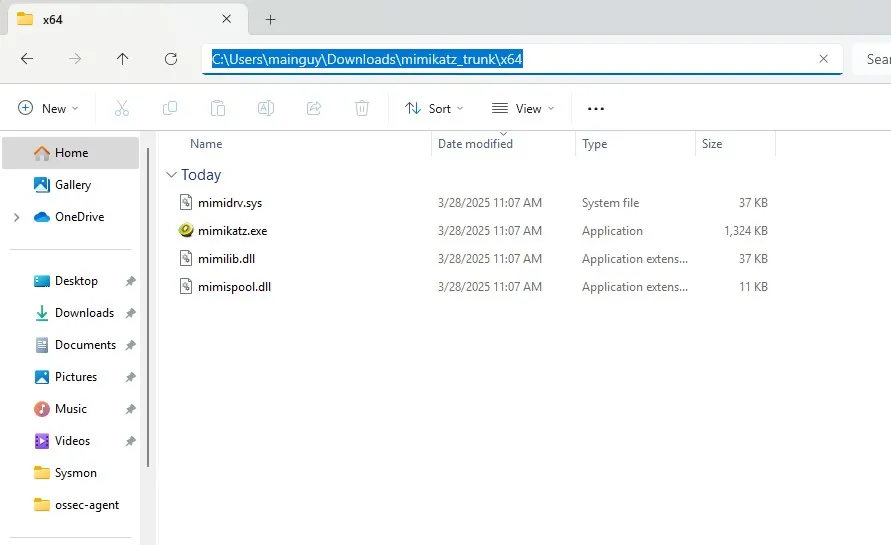
Open up a PowerShell window as administrator and navigate to the folder and run the mimikatz executable.
cd C:\Users\mainguy\Downloads\mimikatz_trunk\x64.\mimikatz.exe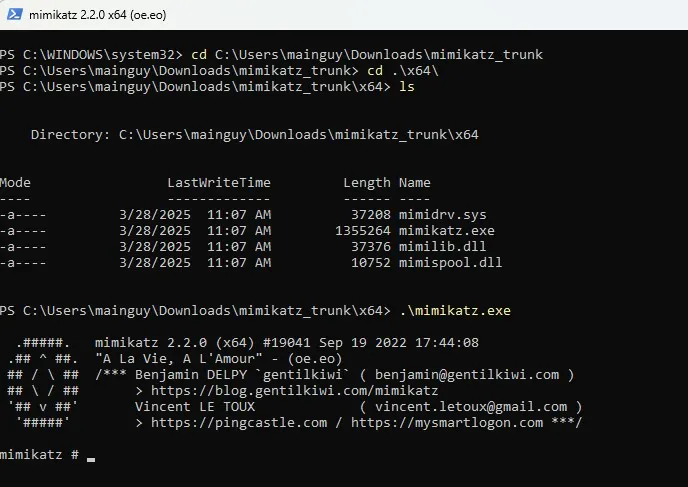
Detect Mimikatz
After running mimikatz on the Windows client, I can detect the same activity on my Wazuh. To do this, I can go Threat Hunting and select the newly created wazuh-archives-* index pattern from above.
Upon querying for the keyword “mimikatz”, I get 2 hits within the last hour.
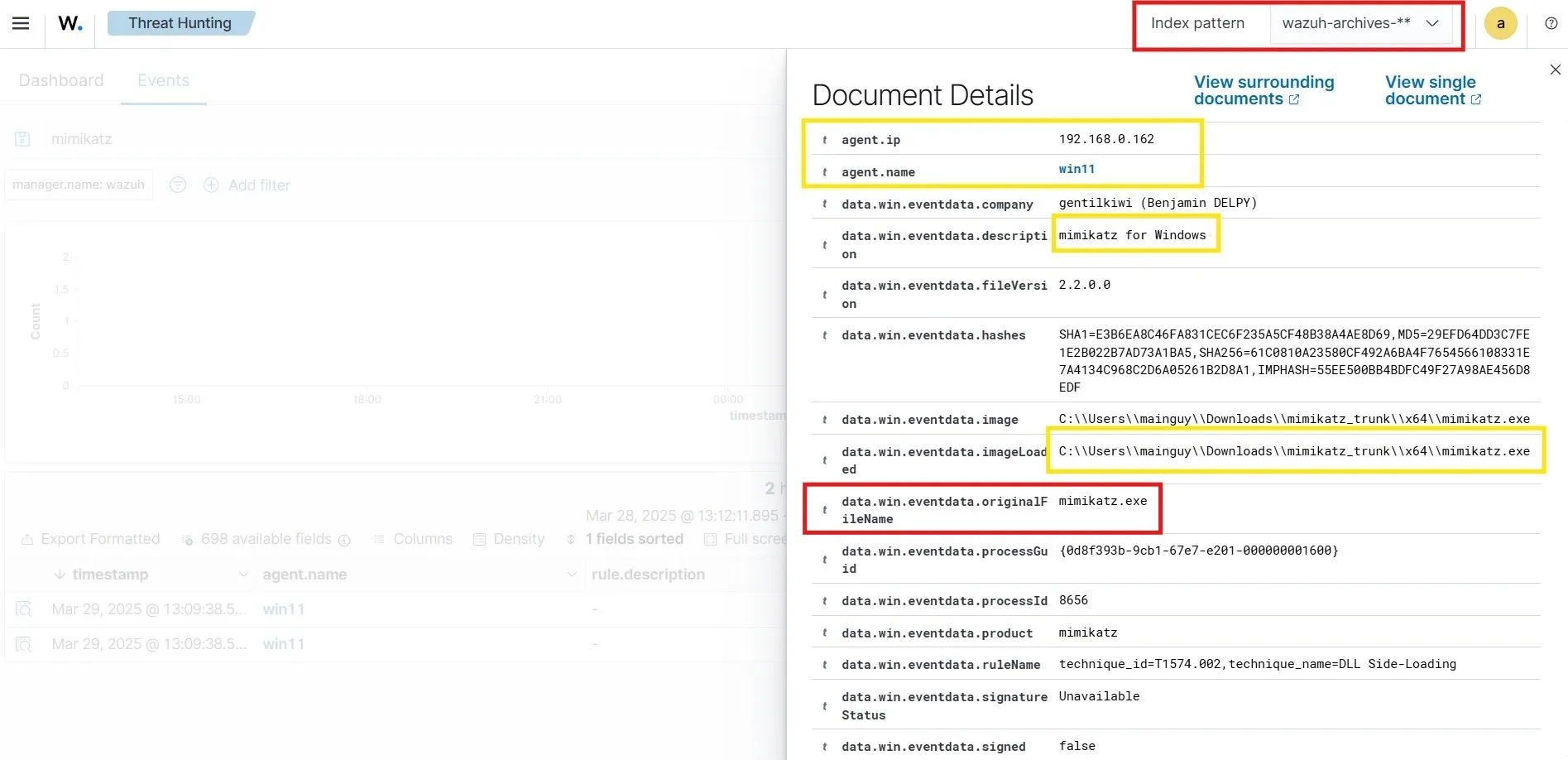
From the details pane of the event, I can see that the event came from 192.168.0.162 which is indeed my Windows 11 client. I can also see the filepath from where I had loaded the mimikatz image. To create an alert for Mimikatz, I can use the originalFileName which is mimikatz.exe, as the originalFileName will not change even if the bad actor changes the filename to something else.
Create alert
Wazuh rule files are located under /var/ossec/ruleset/rules/. But they are also accessible from the Wazuh Web UI. To see the rule files, let’s go to
Rules under Server Management > Manage rule files
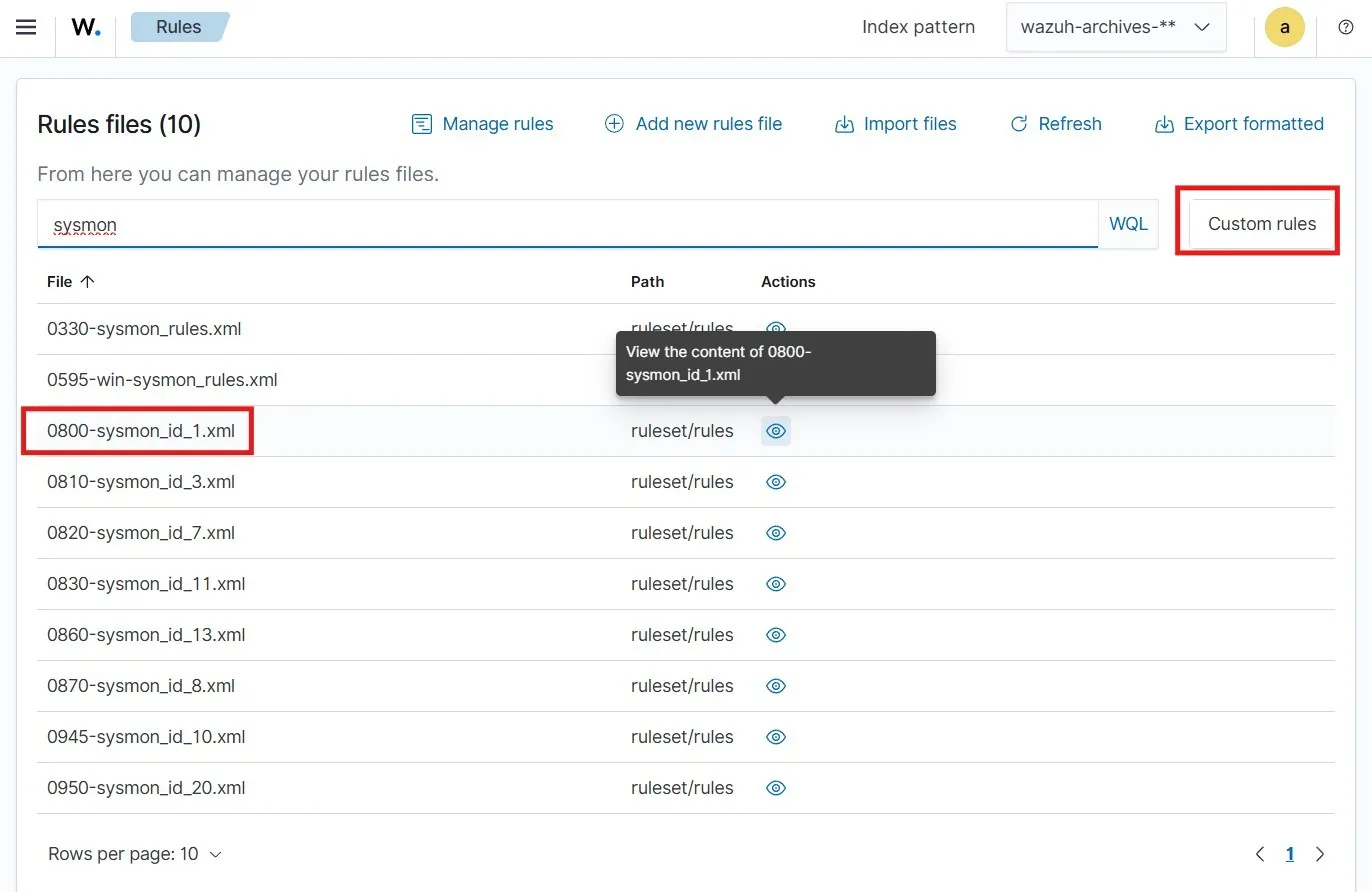
Upon searching for “sysmon”, I can see the rule file for Event ID 1 (process creation). I am copying the first rule from the file. Now let’s click on Custom rules. I can see a local_rules.xml which is the rule file for creating custom rules. I am adding here the Sysmon rule I copied earlier.
Custom rule
Let’s start modifying the rule to fit my needs.
- Custom rules should always have an
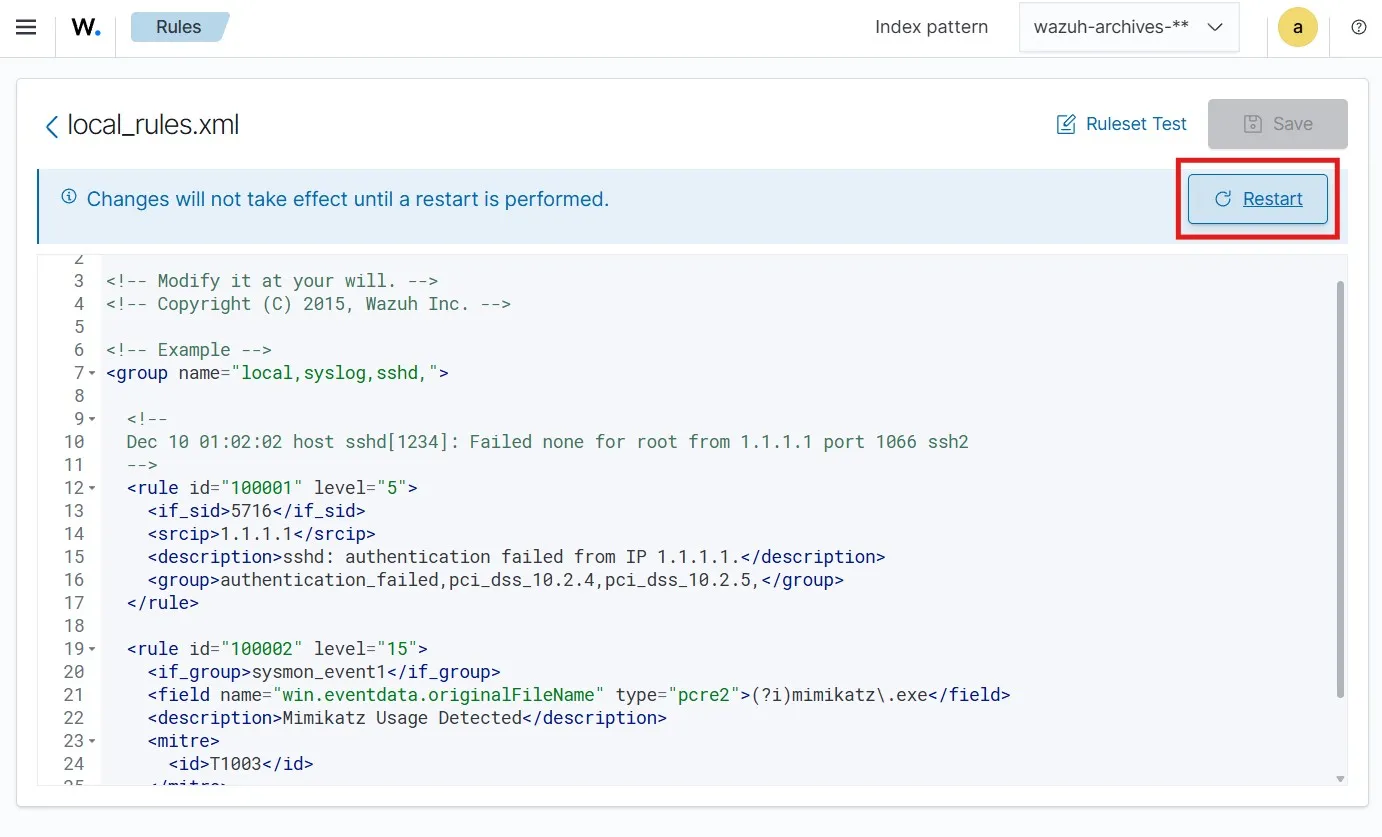
idvalue above 100000. Since there is already anid=100001added already above on thelocal_rules.xmlfile, I’m giving setting theid=100002 - Level indicates severity. The higher the level, the higher the importance of the rule. The highest level is 15.
- The field name I am interested in is the
win.eventdata.originalFileName. I am keeping thetype=pcre2as it is for it to refer to regex. I am setting the field value to(?i)mimikatz\.exe. The(?i)here is there for ignoring case sensitivity for the field value. - I am removing the
no_full_logoption - I am also changing the description to
Mimikatz Usage Detected - Mimikatz is known to do Credential dumping as of MITRE ATT&CK. The ID for this is T1003.
At this point, the modified rule is as below.
<rule id="100002" level="15"> <if_group>sysmon_event1</if_group> <field name="win.eventdata.originalFileName" type="pcre2">(?i)mimikatz\.exe</field> <description>Mimikatz Usage Detected</description> <mitre> <id>T1003</id> </mitre> </rule>I am saving the local_rules.xml file and restarting the Wazuh manager for this to take effect.
Test custom rule
I am changing the mimikatz.exe file name to SuperSafeFile.exe. Then running the executable on the Windows client.
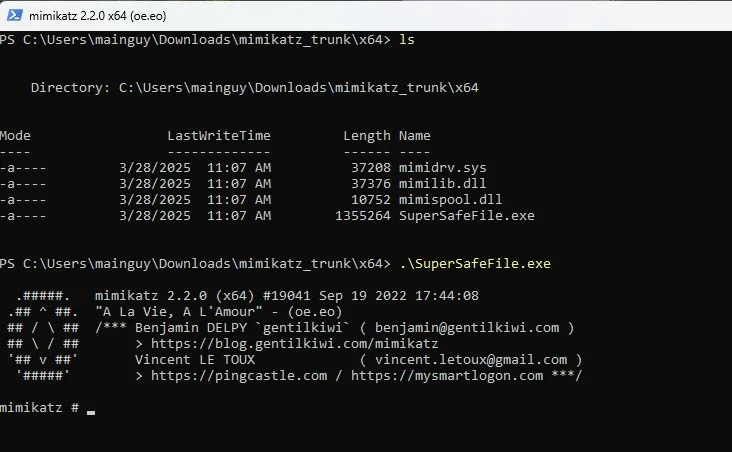
Almost immediately, I can see the rule being triggered on Wazuh.
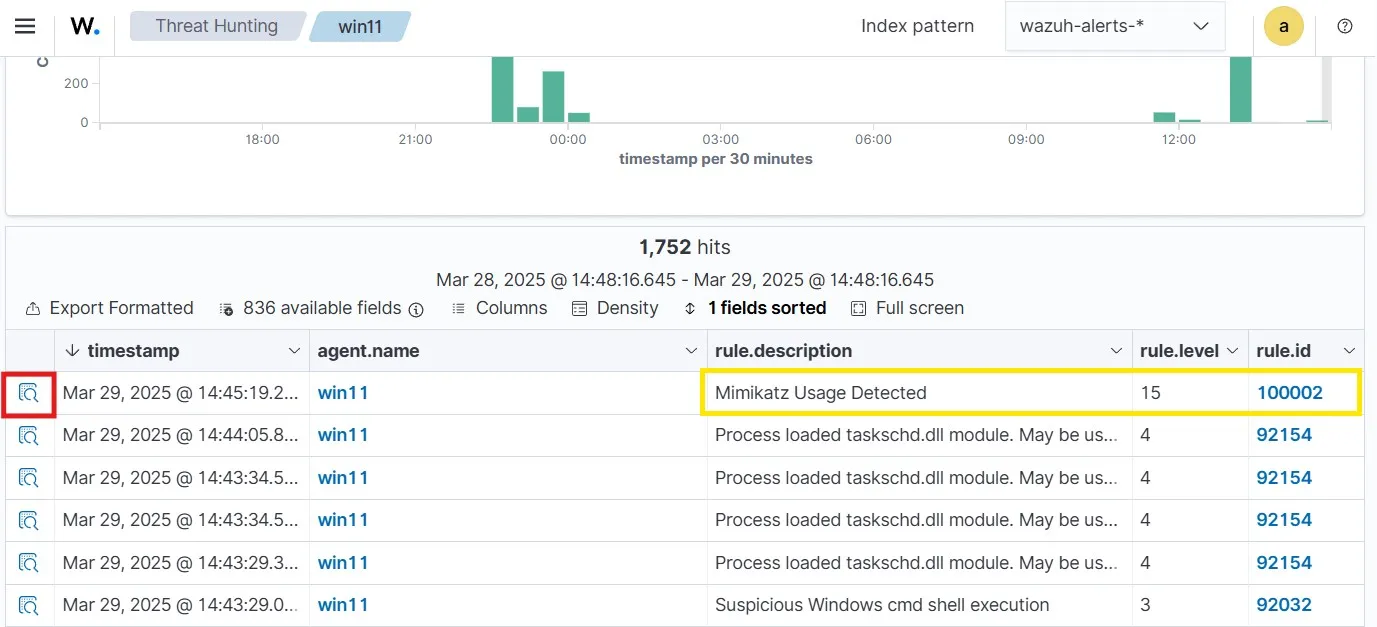
Looking into the event, I can see that although the file name was changed, the originalFileName remained as mimikatz.exe, which triggered the rule after the executable file was run.
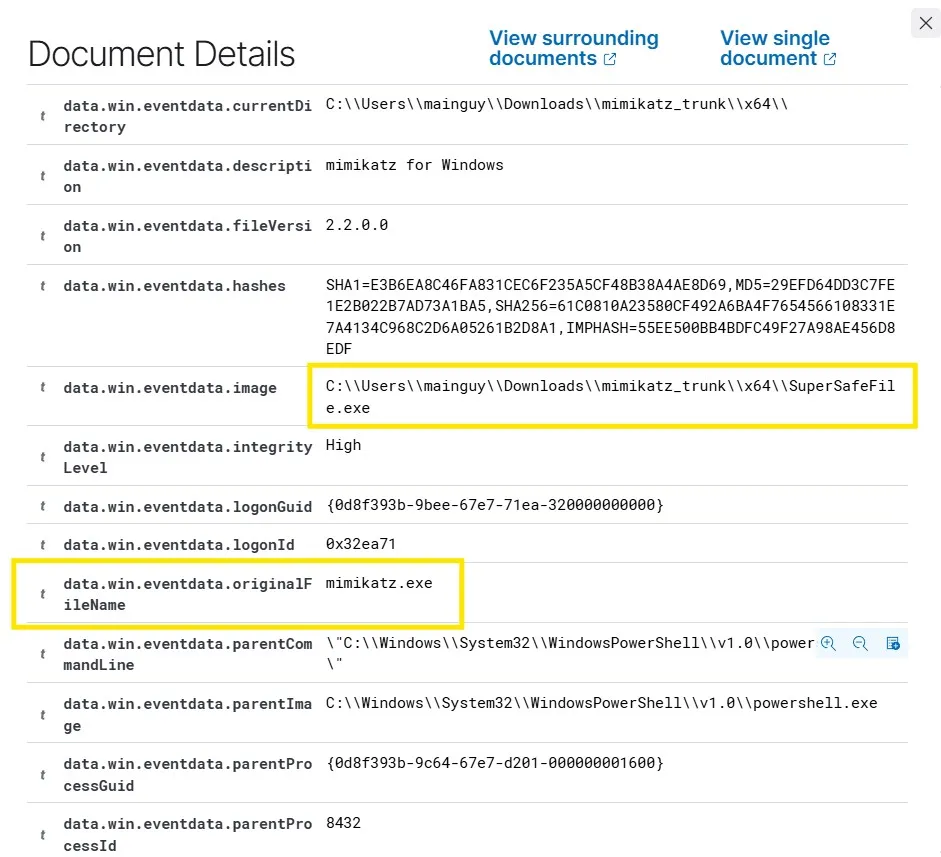
I can also see a lot of other relevant information, like parentProcessID and many more. These information can be very valuable while investigating real-world attacks. Whenever there is a field name or a value that we are unfamiliar with, we should always research and learn more about it, as this will help us with our analysis later.