Burp
Burp is a set of tools from Portswigger. It comes pre-installed in REMnux. It is very popular among people who deal with web app security. For this lab, I am using Burp as a proxy. Although my INetSim is capable of handling requests now, I’ll still need to use Burp to be able to analyze the SSL traffic.
Burp supports generating on-the-fly SSL certificates. It also creates a single root CA certificate, which I’ll be importing later to our FlareVM machine. When the victim machine initiates a SSL connection, it will first go to Burp on port 443, and then Burp will proxy it to INetSim on port 8443 (HTTPS configured on INetSim’s config file). This setup will allow us to intercept encrypted communications sent from malwares.
Configure Burp
Since port 443 is a privileged port, burp needs to be run with sudo. Let’s launch the Burp Suite Community Edition that is already installed on our REMnux machine.
remnux@remnux:~$ sudo burpsuiteCreating a temporary project with Burp default configuration. Under the Proxy tab opening Proxy settings. Burp’s default listener listens on localhost port 8080. I need to change that.
- Select the listener and Open Edit
- On the Binding tab set Bind to Port option to 443
- Set Bind to address to all interfaces
- On the Request Handling tab set Redirect to host to localhost
- Set Redirect to port to 8443
- Select the checkbox Support invisible proxying

Under the Intercept tab if Intercept is on, Burp will intercept every HTTPS requests and will wait for us to explicitly let them pass through. As I don’t want that I am making sure that it shows Intercept off.
Save project options
Burp Free version I’m using doesn’t allow to save project. However, I can export the settings of the current temporary project.
To do this:
- From the User Interface > Project
- Project settings > Save project settings
I am saving the file on my analysis folder as burp-config-https-proxy. Next time I use Burp, I can import the /analysis/burp-config-https-proxy.json settings and get started.
Test the proxy
Let’s start INetSim again.
remnux@remnux:~/analysis/test-analysis$ sudo inetsim --data data --conf inetsim.confTo test if the proxy is working, I am going to send a curl https request to localhost.
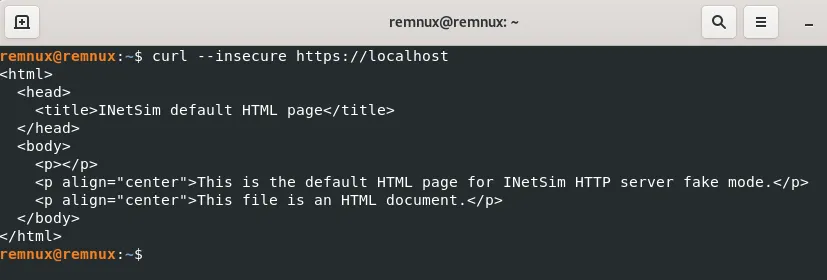
Since I’m getting the INetSim default HTML page as the response, the proxy is working correctly.
Import Burp’s CA certificate
Although the Burp proxy is working now, if I try to make an https request from my FlareVM machine, it gives me a certificate warning. This happens because Burp generates SSL certificates that are signed by its own CA certificate, but our FlareVM machine does not trust Burp’s CA as of now.
I need to manually add Burp’s CA certificate to FlareVM’s Trusted Root Certification Authorities.
To do this, in REMnux:
- In Burp Proxy > Proxy settings
- Add new proxy listener
- Bind to port 8080
- Bind to all interfaces
In FlareVM:
- Browse to http://10.0.0.3:8080
- Click on CA Certificate to download the cacert.der file
- Right click the downloaded file and Install Certificate
- Store location > Local Machine > Next
- Follow on-screen instructions and Finish
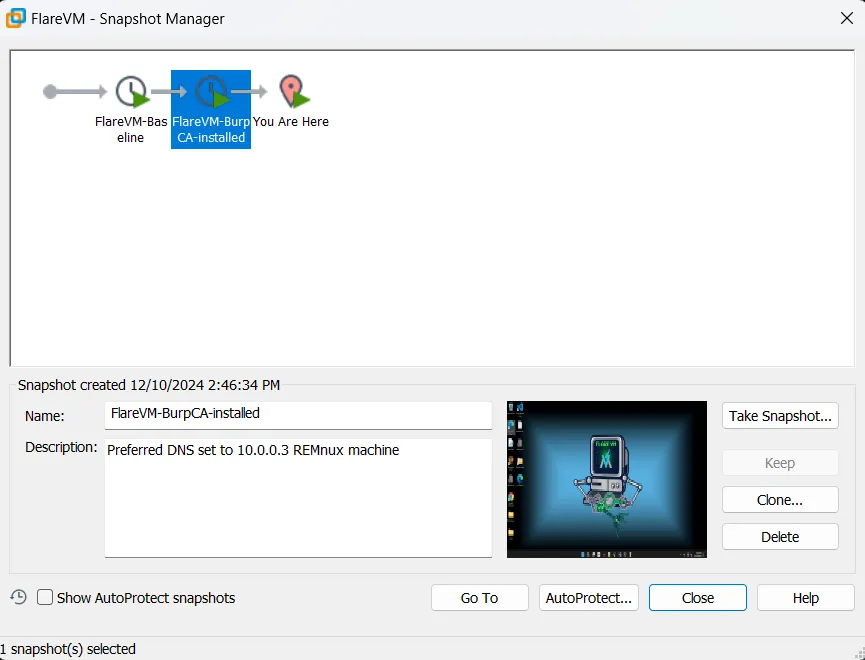
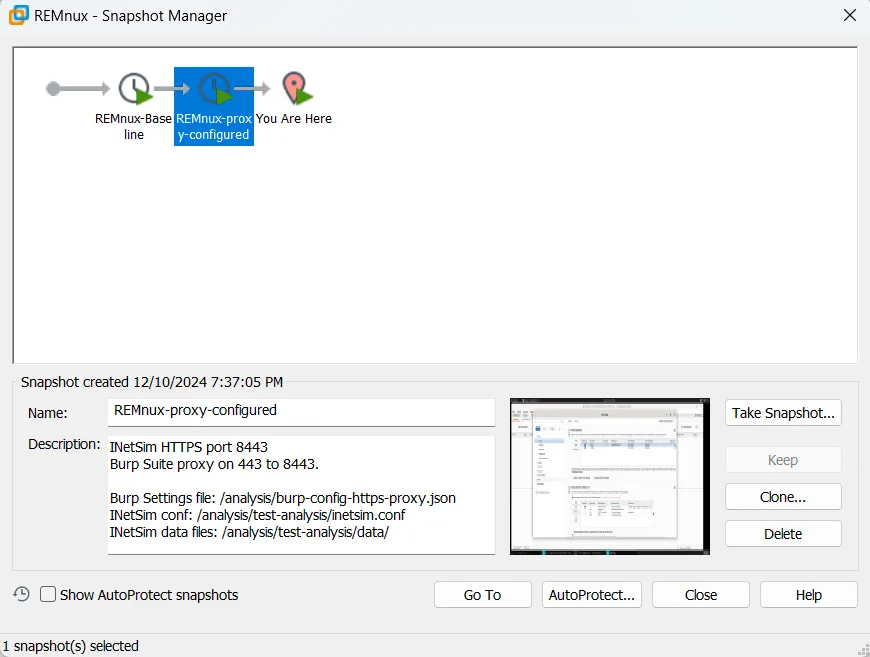
After the certificate import is successful, I am taking a new snapshot of this state. This will be my clean OS state with Burp’s CA installed. Also taking a snapshot of the REMnux machine at present state to launch at ready state when I want.