

Windows Server 2022
Objectives:
- To have a Windows Server with RDP exposed to the internet
Go to cloud.google.com and login. Navigate to our SOC-Monitoring project.
Steps to create the Windows Server
- Go to Compute Engine > VM Instances > Create Instance.
- Name the instance (e.g.
windows-server)- Choose Region: Pick a region. Preferably the same region on which our ELK server resides to avoid regional accessibility issues (I choose
asia-east1region andasia-east1-azone)- Machine configuration: Select a machine type which won’t incur much cost (e.g., e2-medium with 2 vCPU and 4GB RAM).
- OS and Storage: Choose Windows Server 2022 Datacenter as operating system with enough disk space (I chose a 60 GB SSD disk). (Full account activation is required to use Windows images in Google Compute Engine)
- Networking: I’m not adding any additional firewall rules from here. No network tags as well. Under network interface let’s choose our VPC
vpc-test-machinesand select subnetvpc-test-machines-internal. Let’s choose a custom IP address (I choose192.168.0.2. We cannot use192.168.0.1for our machines as it is already reserved for the gateway). I’ll leave the external IP address as Ephemeral.- Click Create to start our Windows server instance
My Windows instance config
| Configuration | Value |
|---|---|
| Instance Name | windows-server |
| Region | asia-east1 |
| Zone | asia-east1-a |
| Machine Type | e2-medium (2 vCPUs, 4 GB RAM) |
| Operating System | Windows Server 2022 Datacenter |
| Storage | 60 GB SSD |
| Network | vpc-test-machines |
| Subnet | vpc-test-machines-internal, range 192.168.0.0/24 |
| Internal IP | 192.168.0.2 |
| External IP | Ephemeral |
| Firewall Rules | As configured for the network |
| Network Tags | None |
Navigate to:
VM instances > Choose our machine > Under Network interfaces > Network details > Click view details
Here we can check and make sure that our machine firewall rules are set properly and accepts RDP traffic from all over the internet.
To set up credentials for RDP connection into this machine, choose our machine instance again and Click Set Windows Password. It will allow us to set an username and it will generate a password for us. Let’s save the credentials somewhere to be used whenever necessary.
If we now use Remote Desktop Connection from our local windows machine (or we can also use third part clients), put in the public IP for our windows-server machine, and use the credentials we have generated, we’ll be able to access our windows server machine.
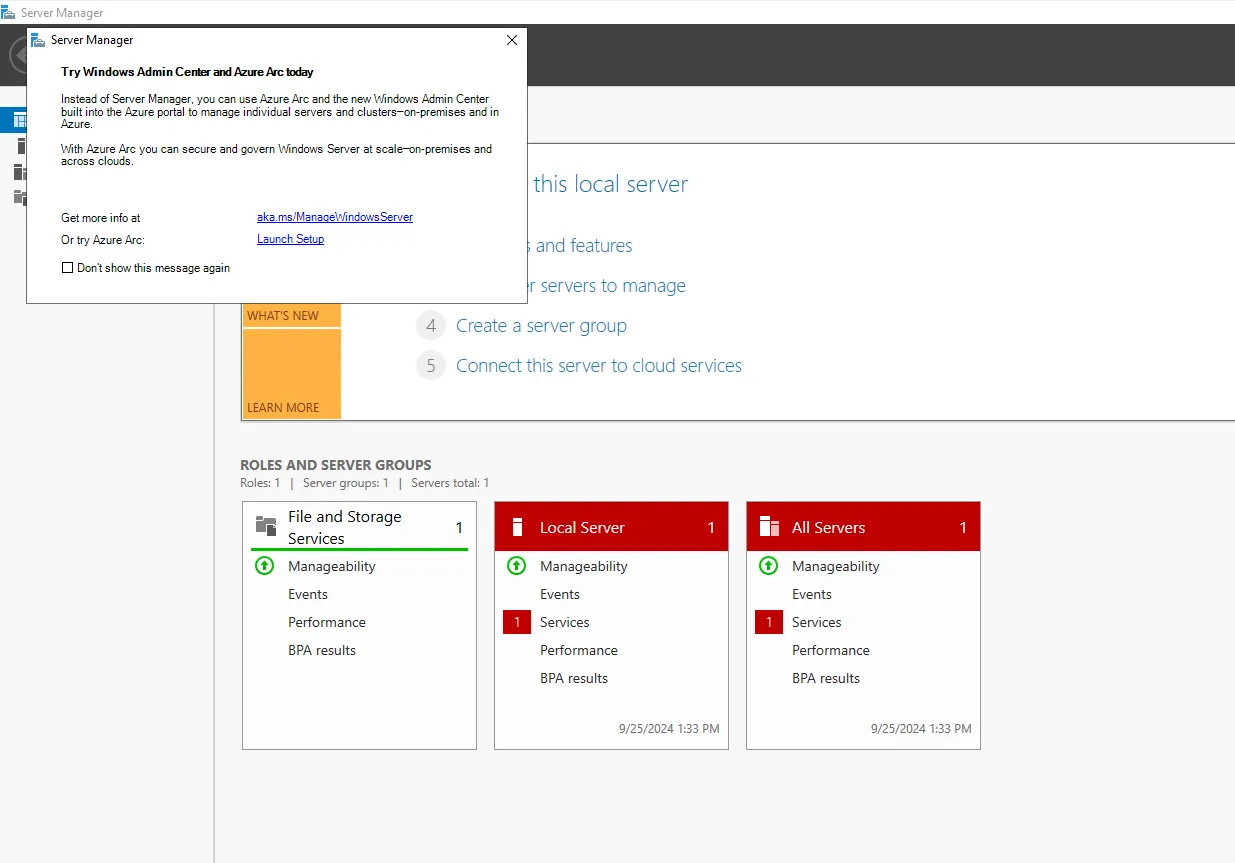
We have SUCCESSFULLY set up our Windows server 2022 with RDP exposed to the internet