

Ubuntu Server 24.04
Objective:
- Setup SSH Server and view authentication logs
- Install Elastic Agent onto the server
Machine Configuration
I have set up my server with the following configuration:
| Configuration | Value |
|---|---|
| Instance Name | ubuntu-server |
| Region | asia-east1 |
| Zone | asia-east1-a |
| Machine Type | e2-medium (2 vCPUs, 4 GB RAM) |
| Operating System | Ubuntu 24.04 LTS |
| Storage | 30 GB SSD persistent disk |
| Network Interface | vpc-test-machines |
| Subnet | vpc-test-machines-internal, range 192.168.0.0/24 |
| Custom IP Address | 192.168.0.3 |
| External IP | Ephemeral |
| Firewall Rules | As configured for the network |
| Network Tags | None |
Access the machine
To be able to SSH into the ubuntu-server instance, we’ll need to add our public SSH key created before in our ubuntu-server VM instance. Now we should be able to get SSH access.
After we are in the machine:
sudo -iapt-get update && apt-get upgrade -y/var/log/auth.log
Let’s head over to the /var/log directory.
root@ubuntu-server:~# cd /var/logroot@ubuntu-server:/var/log# lsREADME btmp dmesg lastlog wtmpalternatives.log chrony dpkg.log privateapport.log cloud-init-output.log journal syslogapt cloud-init.log kern.log sysstatauth.log dist-upgrade landscape unattended-upgradesauth.log contains all of the authentication related activities. We can observe and investigate the entries in this log file from the terminal and might find some interesting login attempts.
root@ubuntu-server:/var/log# grep -i sshd auth.log | grep -i root2024-10-03T05:49:16.477434+00:00 ubuntu-server sshd[923]: Disconnected from authenticating user root 189.127.173.52 port 41534 [preauth]2024-10-03T05:50:46.877008+00:00 ubuntu-server sshd[1202]: Disconnected from authenticating user root 189.127.173.52 port 45180 [preauth]2024-10-03T05:51:35.809710+00:00 ubuntu-server sshd[1204]: Disconnected from authenticating user root 189.127.173.52 port 54790 [preauth]2024-10-03T05:52:23.717803+00:00 ubuntu-server sshd[1206]: Disconnected from authenticating user root 189.127.173.52 port 50986 [preauth]2024-10-03T05:53:11.084764+00:00 ubuntu-server sshd[1208]: Disconnected from authenticating user root 189.127.173.52 port 50836 [preauth]2024-10-03T05:53:57.284983+00:00 ubuntu-server sshd[1211]: Disconnected from authenticating user root 189.127.173.52 port 35130 [preauth]2024-10-03T05:54:44.848696+00:00 ubuntu-server sshd[1215]: Disconnected from authenticating user root 189.127.173.52 port 40842 [preauth]2024-10-03T05:55:30.066801+00:00 ubuntu-server sshd[1226]: Disconnected from authenticating user root 189.127.173.52 port 39844 [preauth]2024-10-03T05:56:16.381754+00:00 ubuntu-server sshd[1228]: Disconnected from authenticating user root 189.127.173.52 port 40012 [preauth]2024-10-03T05:57:00.940092+00:00 ubuntu-server sshd[1702]: Disconnected from authenticating user root 189.127.173.52 port 54278 [preauth]root@ubuntu-server:/var/log# grep -i sshd auth.log | grep -i root | cut -d ' ' -f 1,9,112024-10-03T05:49:16.477434+00:00 189.127.173.52 415342024-10-03T05:50:46.877008+00:00 189.127.173.52 451802024-10-03T05:51:35.809710+00:00 189.127.173.52 547902024-10-03T05:52:23.717803+00:00 189.127.173.52 509862024-10-03T05:53:11.084764+00:00 189.127.173.52 508362024-10-03T05:53:57.284983+00:00 189.127.173.52 351302024-10-03T05:54:44.848696+00:00 189.127.173.52 408422024-10-03T05:55:30.066801+00:00 189.127.173.52 398442024-10-03T05:56:16.381754+00:00 189.127.173.52 400122024-10-03T05:57:00.940092+00:00 189.127.173.52 54278I have found service scanning and probing activity by the IP 189.127.173.52. This is typical for an internet-facing connection. This is most probably a service scanner that has found out that my server is responding to port 22 and is repeatedly trying to authenticate with weak passwords to breach the server.
To ease my efforts, rather than searching through our logs on the server directly, I am going to install an elastic agent on this server, so that we can forward our logs to our already set up elasticsearch instance and query from there.
Install Elastic Agent
Let’s go to http://<elk-server-public-ip>:5601 and login to elastic.
Left-corner hamburger menu > Under Management > Fleet > Agent policies tab > Create agent policy
I have named my policy Agent-Ubuntu-Server. If we go into the policy and select the default integration, we can see that the policy is set to collect system auth logs from /var/log/auth.log already.
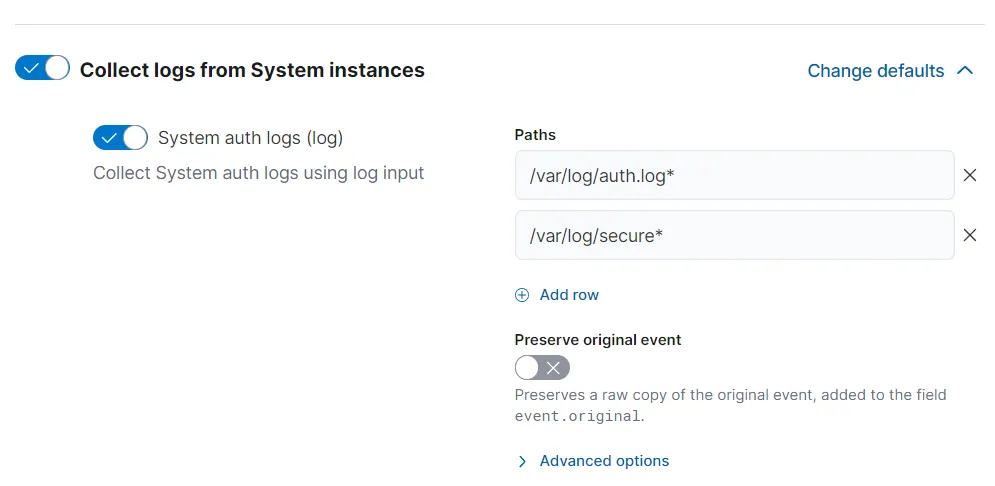
Let’s head over to
The Agents tab > Add agent
We need to select Agent-Ubuntu-Server policy. Let’s copy the Linux Tar command for agent installation.
curl -L -O https://artifacts.elastic.co/downloads/beats/elastic-agent/elastic-agent-8.15.2-linux-x86_64.tar.gz tar xzvf elastic-agent-8.15.2-linux-x86_64.tar.gz cd elastic-agent-8.15.2-linux-x86_64 sudo ./elastic-agent install --url=https://172.31.0.3:8220 --enrollment-token=cmI0c1VaSUJKYlluUkF5aE90UF86R0cwbnQtNW1TNmF4TWV4ZE1NY0NDUQ== --insecureI have added the --insecure flag at the end to avoid singed certificate error since we have done a self-signed certificate.
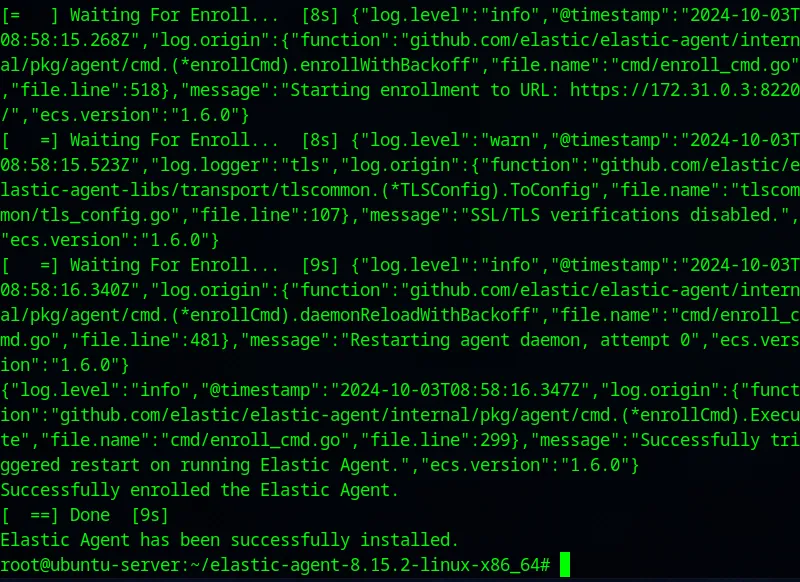
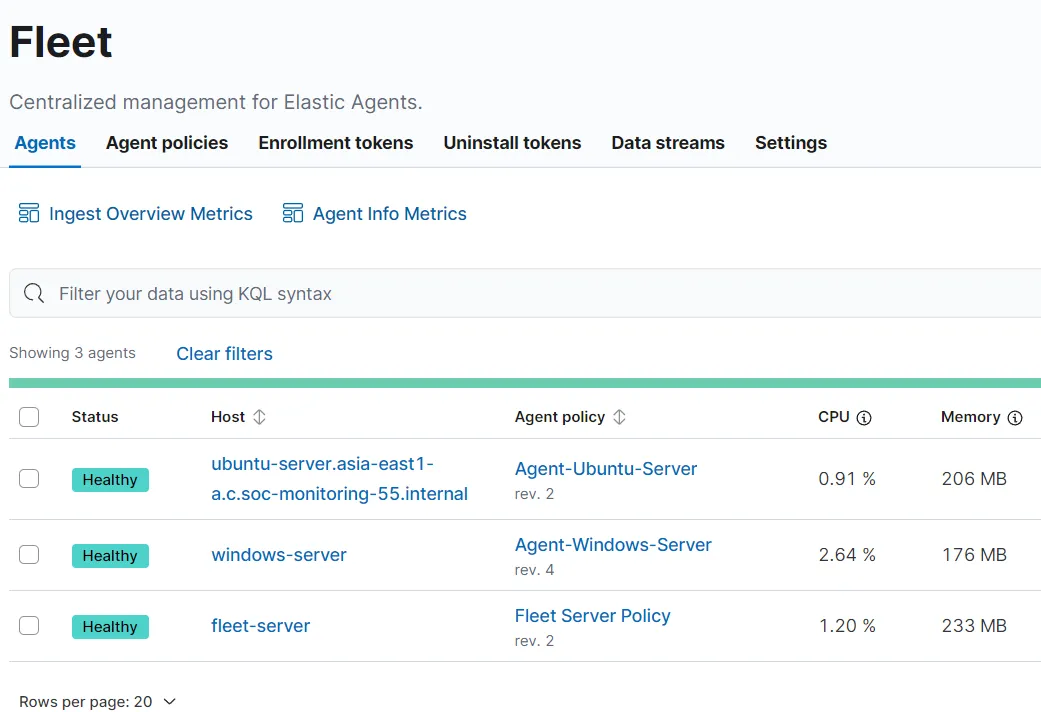
On the fleet page it is showing that Agent is running.
From the Discover tab, let’s add our newly added agent from field agent.name and let’s search for our previously found IP 189.127.173.52 which was trying to breach our server.
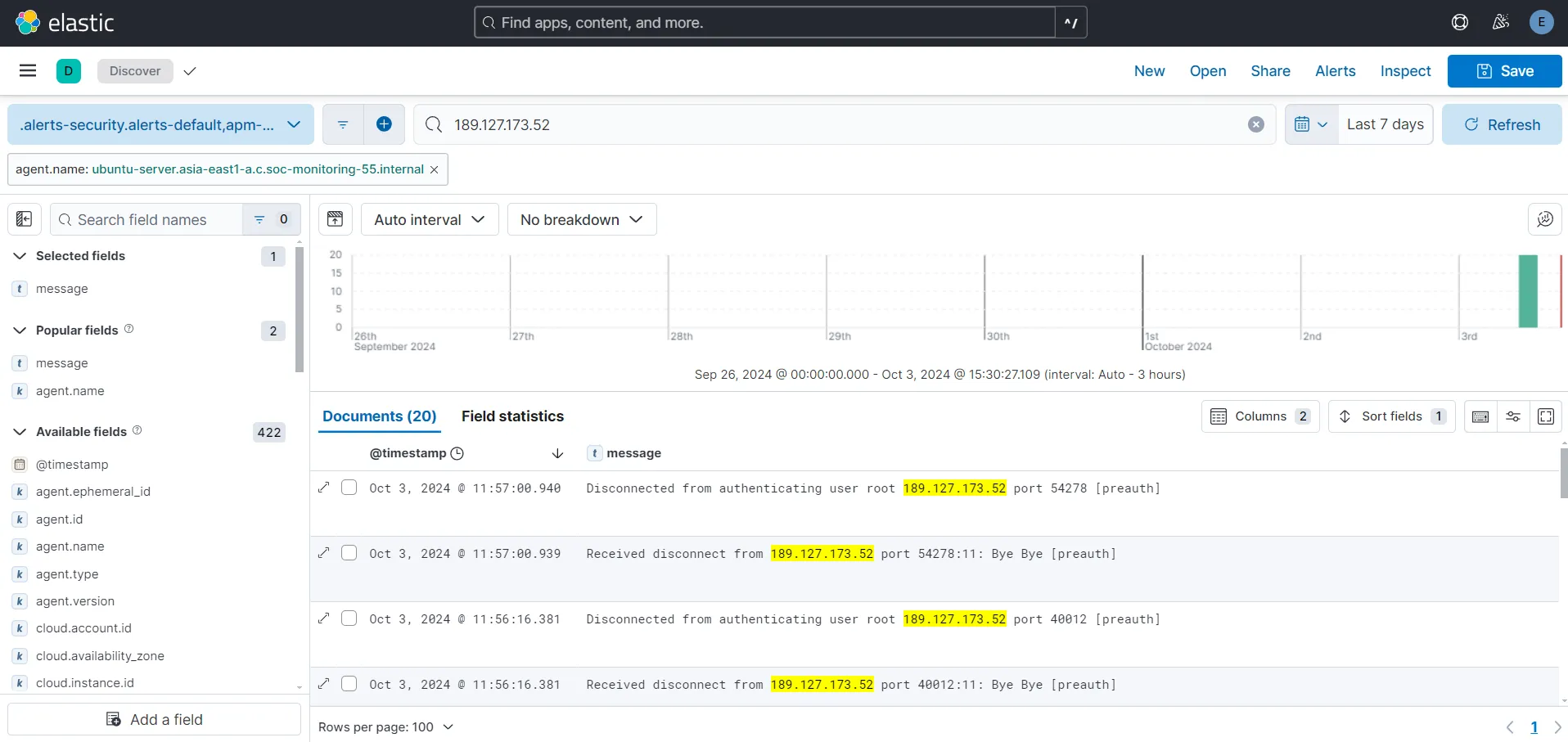
Here, I am able to find all the relevant logs that I had found earlier directly on our system’s auth.log.