

Sysmon setup
Objective:
- Install Sysmon onto Windows Server
- Confirm telemetry
Let’s spin up the windows-server and RDP into our machine. Download sysmon from the official page. After extracting we’ll see 4 binaries inside the folder.
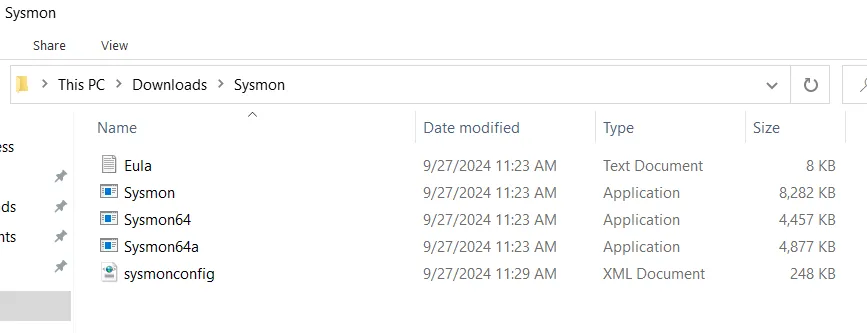
We can use the commonly used sysmon configuration file [sysmon olaf config](sysmon-modular/sysmonconfig.xml at master · olafhartong/sysmon-modular · GitHub) and add the xml file to our Sysmon folder. Now let’s open up powershell as administrator and change the directory to where our Sysmon folder is located.
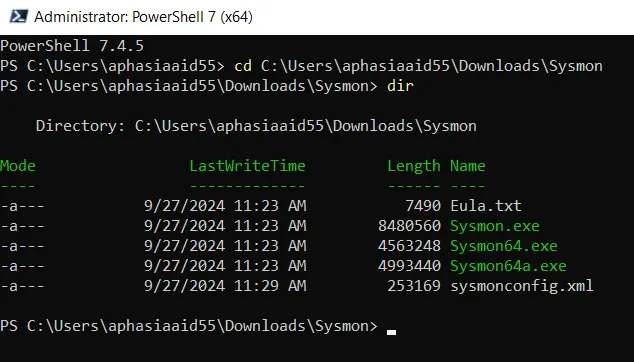
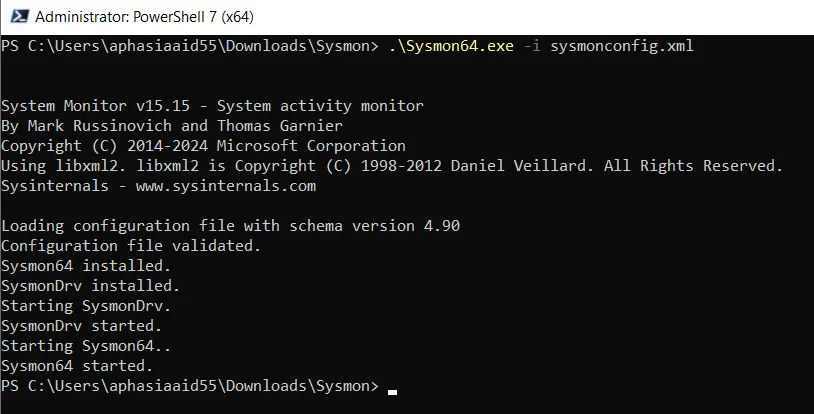
To install Sysmon with our configuration file:
.\Sysmon64.exe -i sysmonconfig.xmlAfter agreeing to the license agreement sysmon should be installed.
If we see Services:
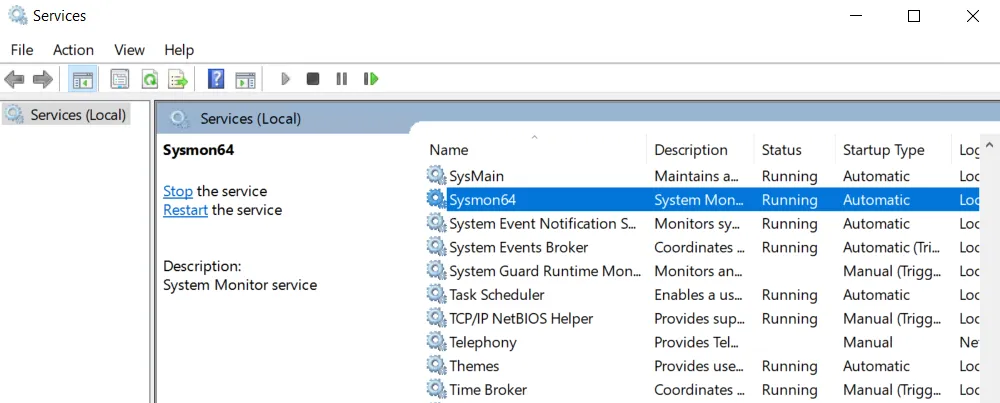
Here we can see that Sysmon64 service status is Running. If we open up Windows Event Viewer and navigate to: Applications and Services Logs > Microsoft > Windows. Here we find Sysmon Operational log file.
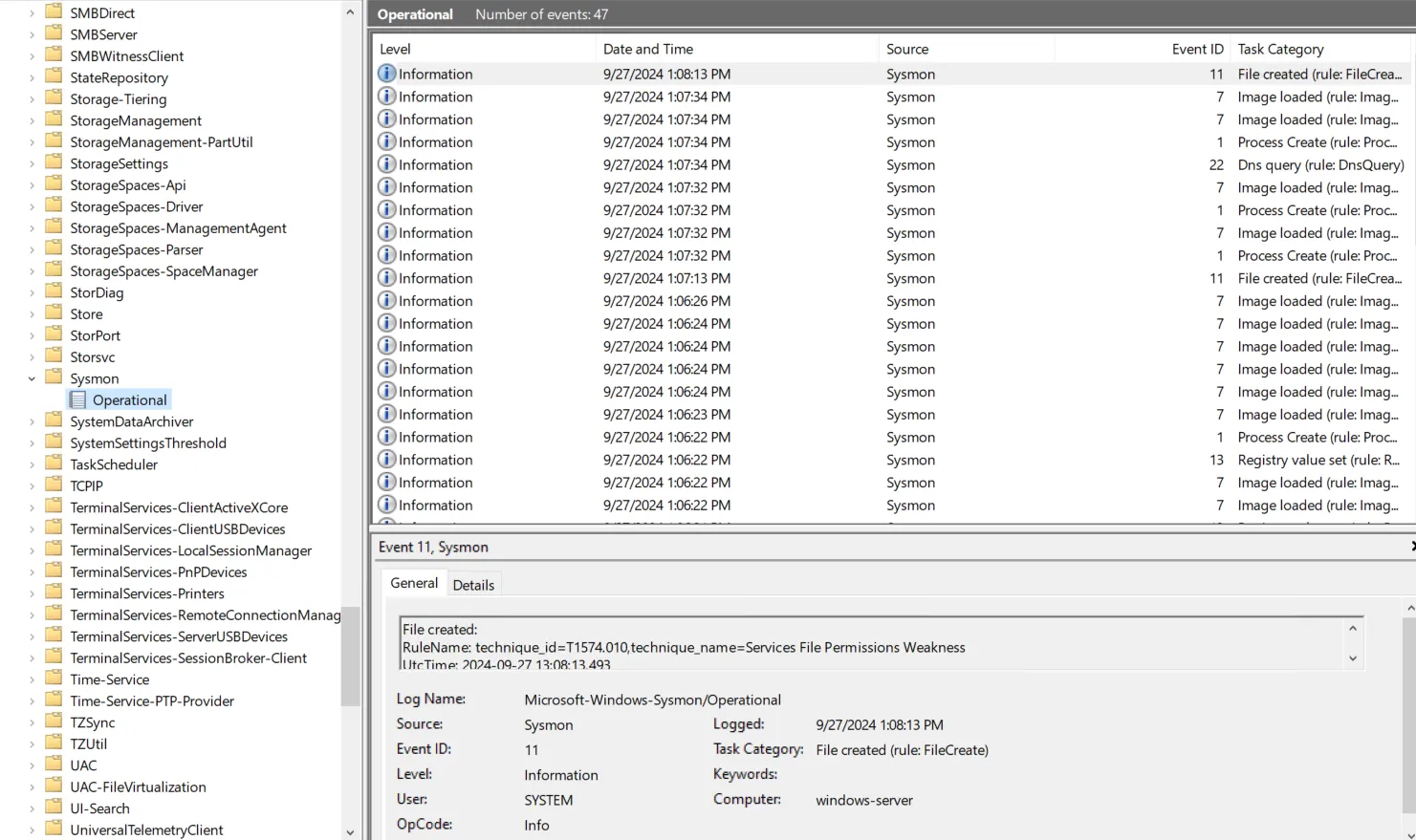
Whenever we need to explore event ids we can refer to the Sysmon Documentation.
Sysmon has been SUCCESSFULLY installed and configure onto our Windows Server machine on the cloud. We have also confirmed that it is generating events.