Create Veeam server
Create Veeam server
For storing backup, I’ll use a separate drive. From ESXi, adding a 30 GB hard drive from datastore “ds1”.
I have a DC1 domain controller. Making another Veeam server with static IP 192.168.0.165 on my home network with preferred DNS set to DC1 address 192.168.0.161 & DC2 address 192.168.0.162.
Rename the computer to “ucch45-veeam” and add to domain
Configured the new Veeam server as a member of the domain “yourdomain.com”
Loaded the ISO image from the ESXi panel
Following install wizard for setup of the Veeam Backup and Replication Community version on the server
After installation is finished gave it a restart.
Steps to configure
Set up backup repository
- Select Veeam shortcut from Desktop to launch it
- Leaving default backup server at localhost:9392
- From the dashboard view > Select backup infrastructure > Backup Repositories
- Right click and add backup repository
- Select direct attached storage > Microsoft Windows > Name the repository “istg-backup-1”
- Create a new folder inside the backup drive and name it “ucch45-backup-1”. Select the repository
- Move ahead and click apply. A message should appear as “backup repository has been added successfully”
- Click yes when prompted for “change the configuration backup location to the newly created repository”
- Remove the backup repository created automatically during installation
Add ESXi server as backup source
First, I’m going to create a new user under ESXi > Manage > Security & users > Add user
Adding the created user “veeam” as Administrator for the Host server
Inside the Veeam server:
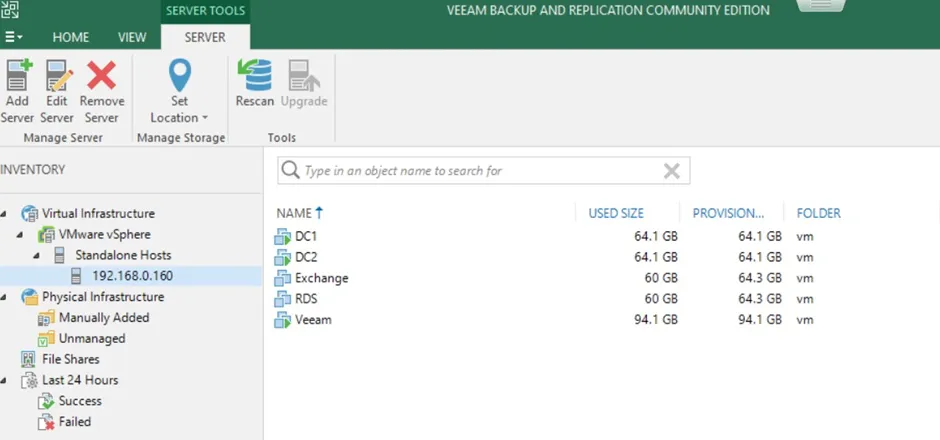
- Inventory > Virtual Infrastructure > Add server
- Select VMware vSphere > vSphere
- Provide the IP address of the ESXi server 192.168.0.160
- On the next window provide credentials for adding the server
- Click on apply and the ESXi servers will be added successfully
Create a backup job
From the Home tab > Jobs:
- Right click > Select Backup > Virtual machine
- Keeping the name Backup Job 1
- Add virtual machines from ESXi host to back up. I am selecting my DC1 and DC2 domain controllers
- Select backup repository that I created earlier (“istg-backup-1”)
- Set retention policy (default 7 days)
- Advanced settings > default backup mode is Incremental. Periodic full backups set for every Saturday
- On the Schedule tab I have option to choose to run the job automatically at a set time setting
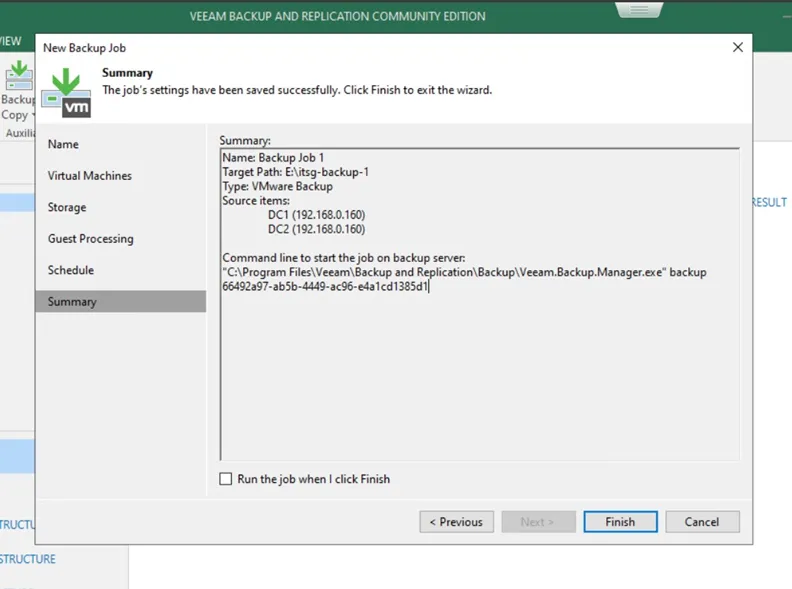
- Upon hitting apply, a summary of the job is shown. Saved after clicking finish
- Run the backup job to perform backup operation