Create first DC server
Setup datastore & install first VM
- Create new datastore from Storage > New datastore. Created datastore ds1
- From Virtual machines > Create/Register VM
- Create a new VM with 2 cpu, 4 gb ram, 60 gb storage
- Upload Windows server 2022 ISO file into the ds1 datastore (inside an ISOs folder)
- Select the ISO as DVD attachment for the VM
Spin up the VM and install Windows. Set up Administrator account. Once the installation is done, I am able to log in to the Administrator account and access Windows environment.
Change server name & Set static IP
From the server manager dashboard:
- Go to local server > click on computer name
- Change the computer name(i.e. UCCH45DC01) following the next prompt
- Click OK and restart the computer
- After the restart I can see the name set accordingly
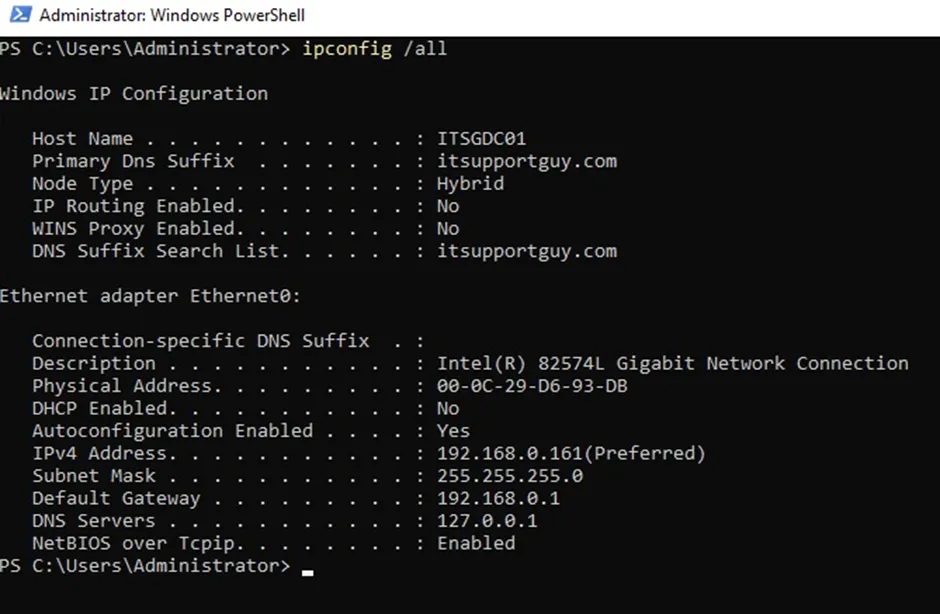
From the IPv4 settings of the ethernet adapter, setting the following static IP for the DC server as 192.168.0.161/24 and the preferred DNS server address to it’s own address 192.168.0.161
Install AD DS
From the server manager dashboard:
- Select Add roles and features
- Installation type: role-based or feature-based installation
- Select the server
- Select role Active Directory Domain Services
- The default features for this role is automatically added
- Check the automatic restart option and then the installation begins
Promote into domain controller
There is a notification flag with option “Promote this server into a domain controller”. Going into that:
- Select deployment operation “Add a new forest”
- Provide root domain name as “yourdomain.com”
- Set a secure DSRM password
Since the DNS server is being created at the moment, there is a warning about a “delegation for the DNS server cannot be created”. This warning can be ignored in this case.
- Set a NetBIOS name same as the root domain name “yourdomain”
- Keep the default options for AD DS database, log files and SYSVOL paths
- If all the prerequisites are met, click install
After the installation is finished, the server restarts automatically.