

Lab Setup
I have installed the following machines on VMWare Workstation Pro 17
- A Windows Server 2022 machine (ADDC01)
- A Windows 11 machine (TRGT-PC)
- A Kali Linux machine
- A Ubuntu Server (for Splunk)
I’ve assigned the static IPs to the machines accordingly. The next task is to install & configure Sysmon & Splunk onto my Windows target machine and the Windows Server so that they can start collecting telemetry and send logs to our Splunk server.
Install Splunk
My splunk server IP is set to static IPv4 address of 192.168.0.100 on installation. Let’s go ahead and update the packages first.
sudo apt-get update && sudo apt-get upgrade -yI have created a new splunk account and logged in to that. Then copied the wget link for Linux deb package.
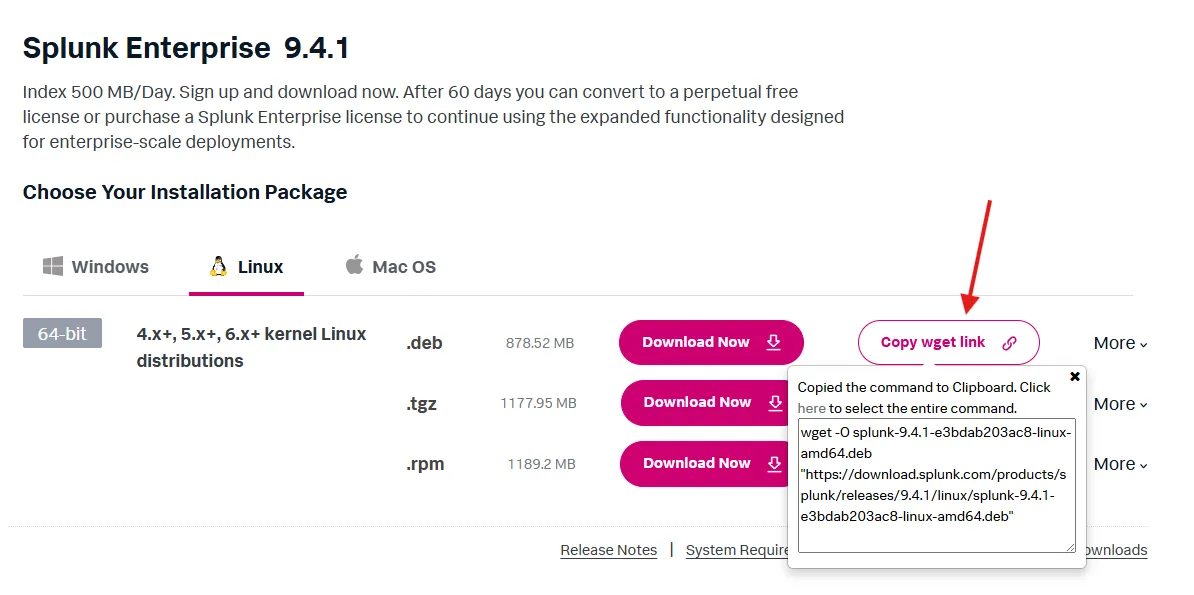
After it is finished downloading, let’s install splunk.
sudo dpkg -i splunk-9.4.1-e3bdab203ac8-linux-amd64.deb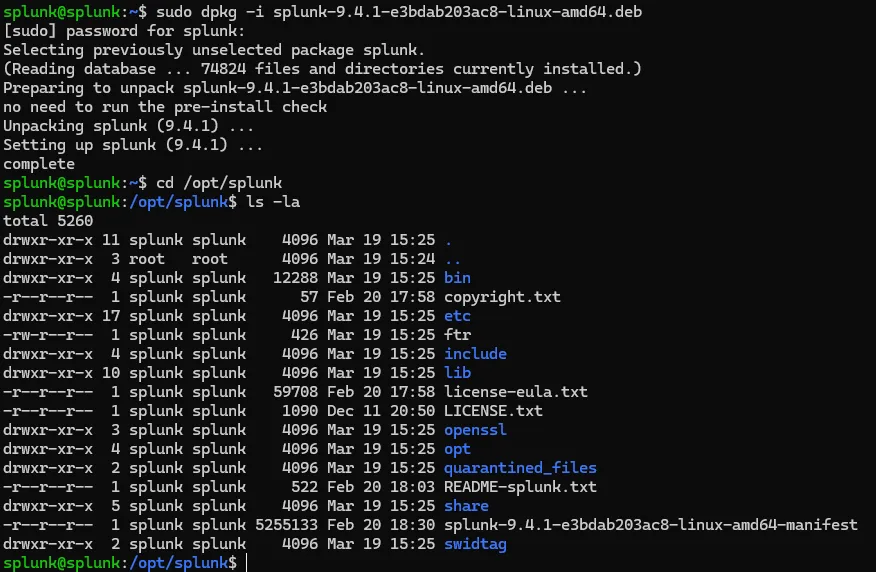
Let’s run the following to install splunk service and ensure that it starts up every time at boot.
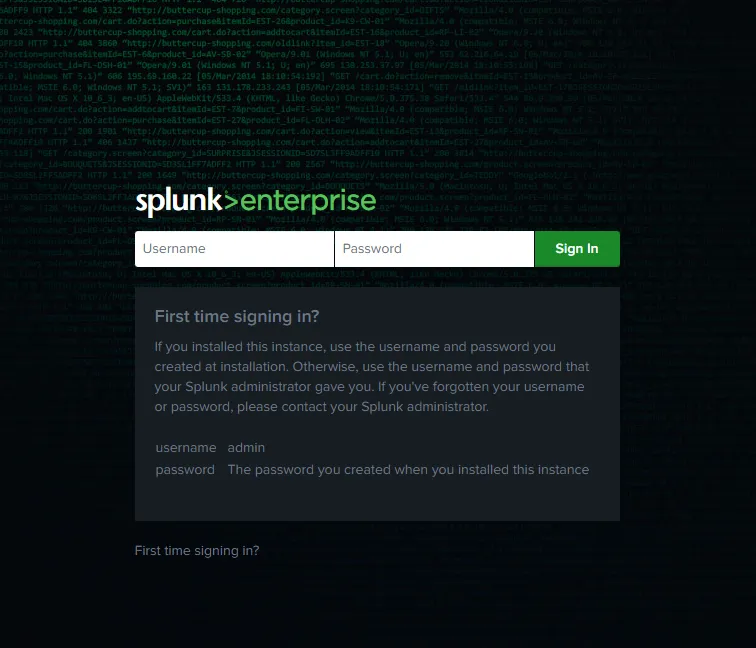
cd /opt/splunk/bin./splunk startsudo ./splunk enable boot-startI set up an Administrator user during the installation which I’ll use to manage the server. Splunk should now be live on http://192.168.0.100:8000
Install Splunk Universal Forwarder
From the Splunk downloads page, I am copying the wget link for Splunk Universal Forwarder for both Windows and Ubuntu.
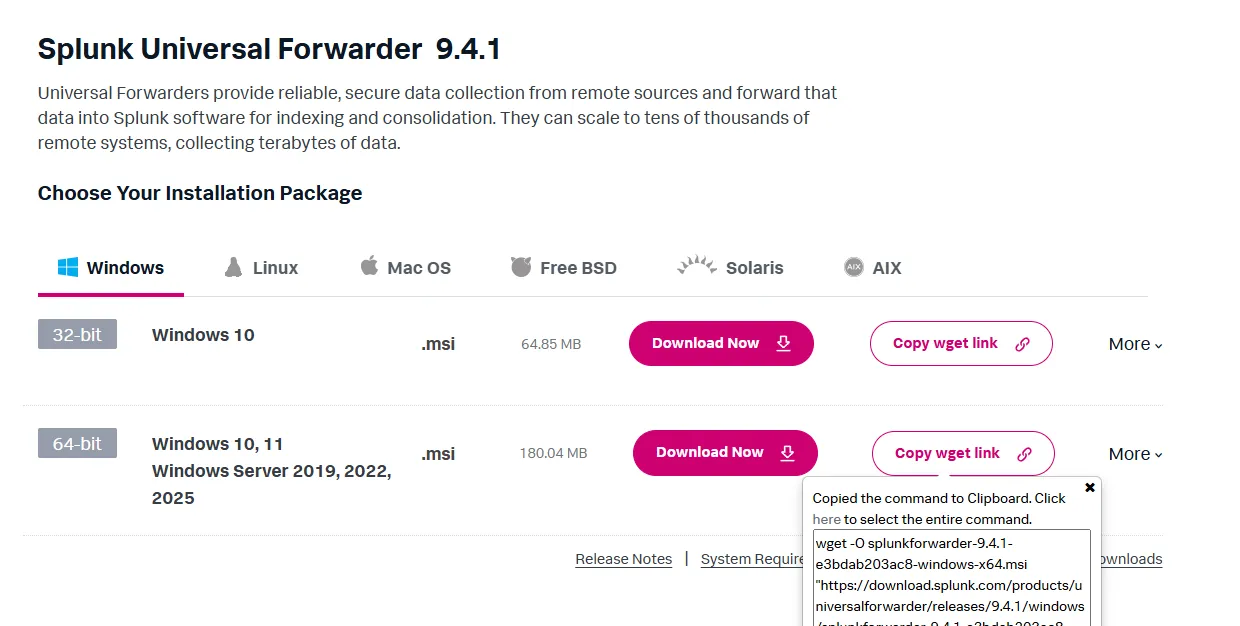
Then I’m downloading and installing the package on the Windows Server and the Windows 11 machine. I’m setting the receiver IP to Splunk server IP and the port to the default splunk receiver port 9997.

Follow the on-screen instructions to install the forwarder.
Install Sysmon
I am downloading Sysmon and the Sysmon Olaf Config file. I’ve extracted the zip file and inside the folder placing the sysmonconfig.xml file. Let’s open PowerShell on the same location and run the following command
PS C:\Users\Administrator\Downloads\Sysmon> .\Sysmon64.exe -i .\sysmonconfig.xmlAgree to EULA on the next prompt. This should successfully install Sysmon on the Windows Server.
Configure log forwarding
I need to instruct my Splunk forwarder on what I want to send over to my Splunk server. To achieve this, I have to configure the inputs.conf file. The file located under C:\Program Files\SplunkUniversalForwarder\etc\system\default
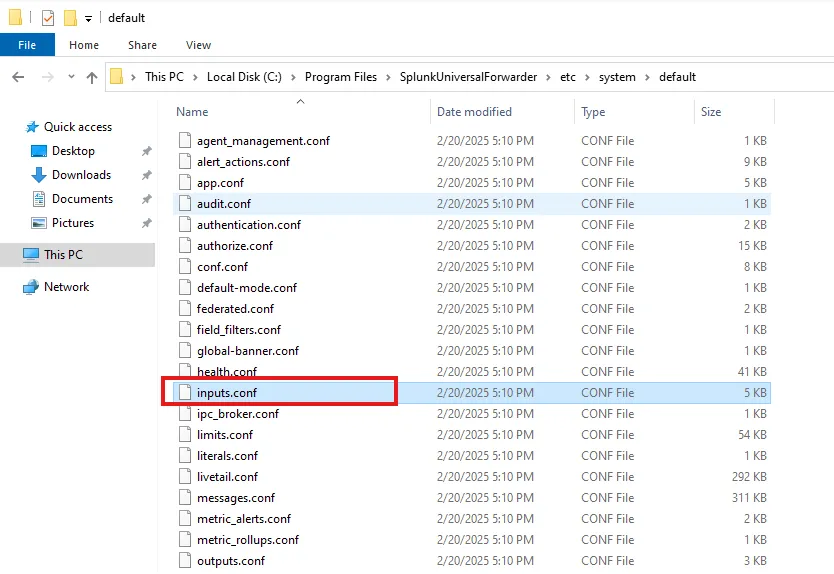
We shall never change the inputs.conf in this default directory. It is only here so that if we mess anything up, we can replace that with the default config. Instead I’m going to create a new file inputs.conf under C:\Program Files\SplunkUniversalForwarder\etc\system\local directory.
The content inside the file shall be as following:
[WinEventLog://Application]index = endpointdisabled = false
[WinEventLog://Security]index = endpointdisabled = false
[WinEventLog://System]index = endpointdisabled = false
[WinEventLog://Microsoft-Windows-Sysmon/Operational]index = endpointdisabled = falserenderXml = truesource = XmlWinEventLog:Microsoft-Windows-Sysmon/Operational
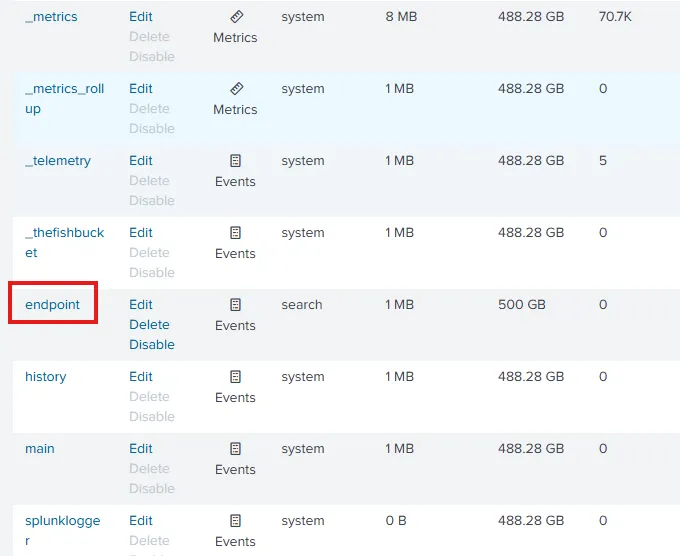
This configuration is instructing our forwarder to push events related to Application, Security, System and Sysmon over to our Splunk server. I am pushing the forwarded events under index = endpoint. If my Splunk server does not have an index named endpoint, it won’t receive any of these events. Refer the Splunk documentation to learn more about this.
After saving the inputs.conf file, we must restart the forwarder service. I can see that the service Log On As is set to NT SERVICE\SplunkForwarder. My configuration won’t take effect if I keep this account. Instead, I am choosing the Local System account. After the change, I have started the service again.
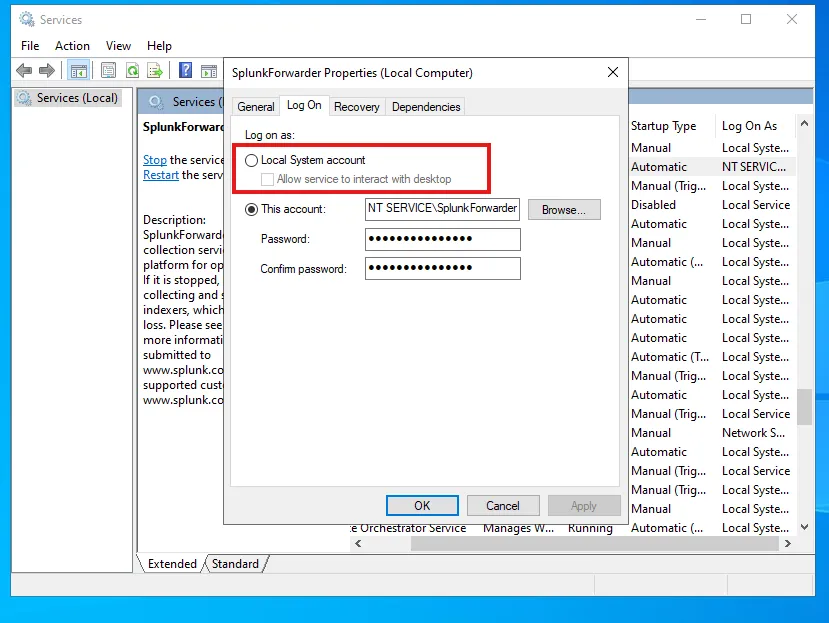
The SplunkForwarder service should show as Running. Now that I have my Sysmon installed and the Splunk Universal Forwarder installed along with our updated inputs.conf file, I can go ahead and finalize my Splunk server configuration.
On the Splunk enterprise, let’s go to Indexes under Settings.
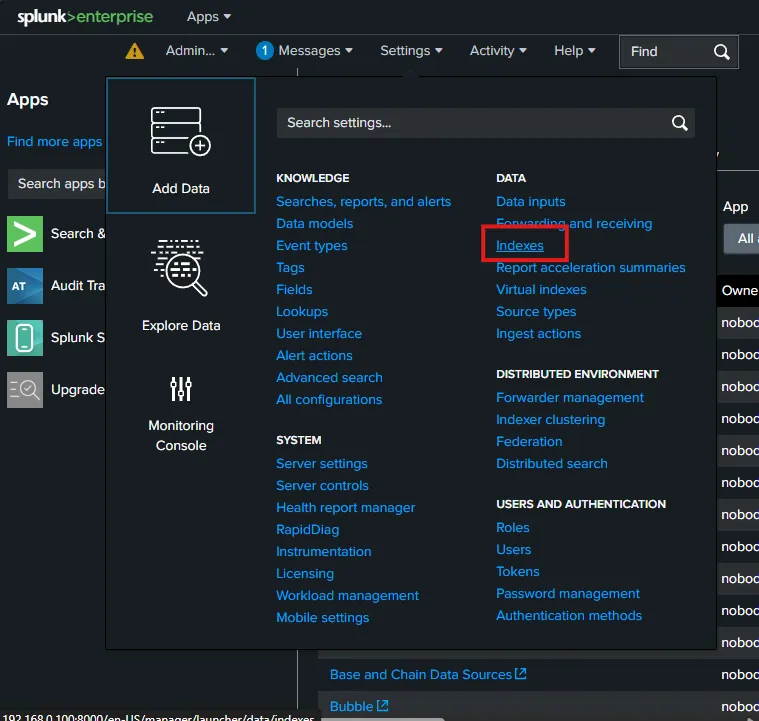
Here, I have simply created a new Index named endpoint.
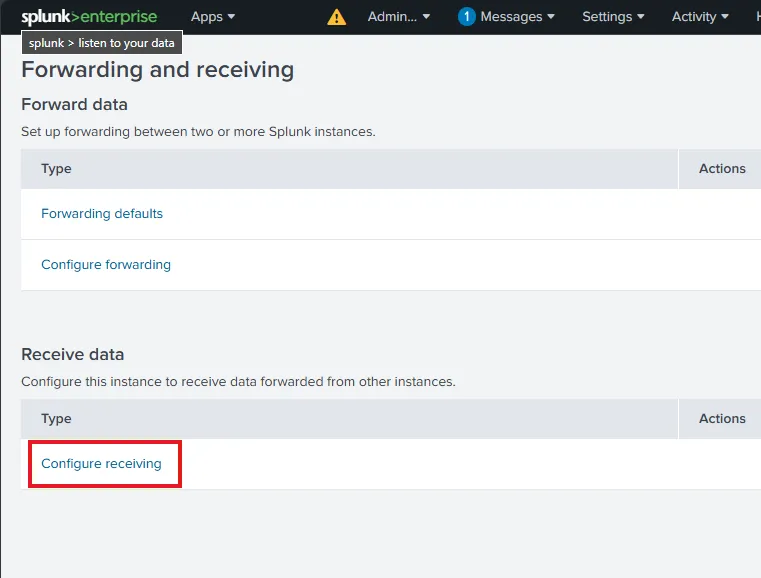
I also need to enable the Splunk server to receive the data. In order to do that, let’s go to Forwarding and receiving under Settings. Then select Configure receiving.
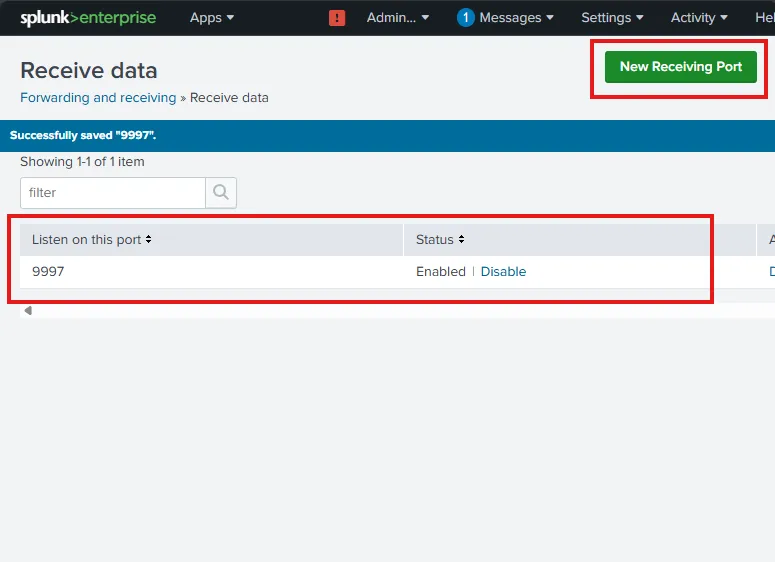
I have added a New Receiving Port 9997 to receive the data sent from my forwarders.
Search for events
Let’s test if I am getting data from the forwarder using Search & Reporting under Apps. Searching for index=endpoint gives me 4,176 events from host ADDC01 which is the name of my Windows Server machine.

Following the same steps, I am installing Sysmon and Splunk Universal Forwarder on my Windows 11 machine(TRGT-PC). After configuring the inputs.conf file and restarting the forwarder service, I can see updated events under Splunk Search & Reporting which includes events from the newly added host.
